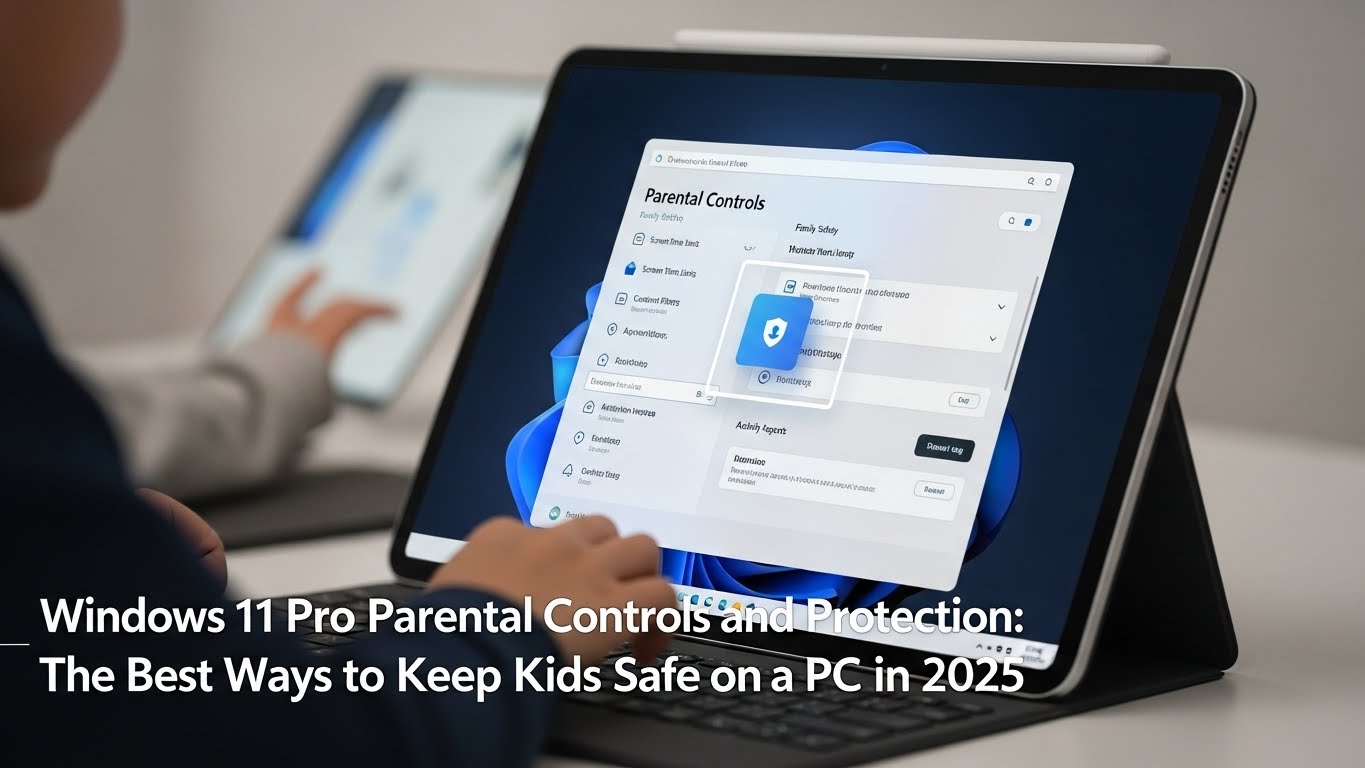
Windows 11 Pro isn’t just a productivity upgrade—it’s also one of the most family-friendly operating systems Microsoft has released. With built-in parental controls, content filtering, screen-time tools, and Pro-level security features, you can turn any Windows 11 PC into a safer, more balanced digital space for children and teens.
But “parental controls” on Windows 11 Pro aren’t a single switch. They’re a toolkit powered mainly by Microsoft Family Safety, plus extra protections Pro users can enable through local security settings and policies. This guide explains what Windows 11 Pro offers, how to set it up the right way, and what to watch out for in 2025 so your rules actually stick.
What Parental Controls Are Available in Windows 11 Pro?
Windows 11 Pro uses the same core family features as Windows 11 Home, but Pro gives you additional control through system policies and security settings. At the heart of everything is Microsoft Family Safety—Microsoft’s free, account-based parental control platform. Microsoft+2How-To Geek+2
Family Safety features you can manage
Once your child has a Microsoft account in your family group, you can manage:
- Screen time limits (daily totals, per-device limits, bedtime schedules) Microsoft+2Tom’s Guide+2
- App and game limits (block or allow specific apps, set time caps) How-To Geek+1
- Web and search filters (block adult sites, allow only kid-safe websites) Microsoft+2Internet Matters+2
- Activity reports (weekly summaries of browsing, apps, and screen time) Internet Matters+1
- Spending controls in Microsoft Store/Xbox (approve purchases) How-To Geek+1
These controls sync across Windows PCs, Xbox consoles, and (if enabled) Android/iOS devices—handy if your kid bounces between screens. How-To Geek+1
Why Windows 11 Pro Is Better for Family Protection
Family Safety works on both Home and Pro, but Windows 11 Pro adds layers that matter for stricter households or older kids who try to bypass rules.
Pro benefits parents actually use
- Stronger account permissions (easier to enforce Standard accounts vs Admin) All Things How+1
- Group Policy controls to lock down settings children shouldn’t change How-To Geek+1
- BitLocker drive encryption to protect files if a device is lost or shared How-To Geek
- Advanced Windows Security options for tighter malware and phishing protection Microsoft
In short: Family Safety sets rules; Pro helps you enforce them.
Step-by-Step: Set Up Parental Controls on Windows 11 Pro
Step 1: Create (or sign in with) a child Microsoft account
- On the PC, go to Settings → Accounts → Family.
- Click Add someone → Add a child.
- Either create a new Microsoft account for your child or sign in with theirs. Microsoft+2All Things How+2
Tip: Don’t let kids use your account. Parental tools only work reliably when they log in with their own child account. How-To Geek+1
Step 2: Add the child to your Microsoft Family group
If you didn’t do this in Settings, you can add them from the Family Safety website/app using your account. Once added, Windows automatically treats that account as a child profile. Microsoft+1
Step 3: Configure rules in Microsoft Family Safety
Open the Family Safety app (or web dashboard) and choose your child. Then set:
- Screen time: daily limits + schedules Microsoft+1
- Apps & games: block, allow, or cap time per app How-To Geek+1
- Content filters:
- turn on web filters
- set age limits for apps/games
- optionally allow only whitelisted sites Microsoft+2Internet Matters+2
- turn on web filters
Step 4: Make sure your child account is Standard, not Administrator
This is huge. If your child has admin rights, they can reinstall browsers, remove controls, or change system settings.
- Go to Settings → Accounts → Other users.
- Select your child account → Change account type.
- Set it to Standard User. All Things How+1
Pro-Level Protection You Should Enable
1. Block app installs without approval
Even with Family Safety app limits, Pro lets you stop random software installs.
- Keep kids on a Standard account (most effective).
- If needed, use Group Policy to reduce install permissions further. iTech Hacks+1
2. Turn on device encryption / BitLocker
Windows 11 Pro supports BitLocker, which protects your child’s files and your family data if a laptop is lost. It also stops kids from booting another OS to bypass controls. How-To Geek
3. Use Windows Security + SmartScreen
Windows Security (Defender) and SmartScreen reduce malware, phishing, and shady downloads—things kids click accidentally. Keep real-time protection on and don’t disable warnings. Microsoft
Common Issues in 2025 (and How to Handle Them)
Chrome or other apps not working with web filters
In 2025, Family Safety has had a widely-reported bug that sometimes blocks Google Chrome from opening when web filtering is turned on. Workarounds like renaming Chrome.exe or disabling filters may fix it, but they weaken protection. If this hits you, using Edge temporarily is the safest short-term option. The Verge
Game Pass and account mismatches breaking controls
Recent changes to Xbox app / Microsoft Store sign-in behavior on Windows 11 can break Family Safety when kids play PC Game Pass under the wrong Windows login. The fix is simple: kids must always play under their own Windows child accounts, not yours. Windows Central
Kids trying to bypass controls
The most common bypass attempts:
- using a parent account
- installing alternate browsers
- booting from USB
- changing system time
Pro-side defenses:
- Standard user accounts
- BitLocker / Secure Boot
- tighter policies for installs/time changes iTech Hacks+1
Best-Practice Rules for Healthy Screen Time
Parental controls work best when they’re clear, consistent, and fair.
- Start with realistic limits and adjust weekly.
- Use bedtime schedules, not just daily totals. Microsoft
- Cap specific apps (games/social) rather than punishing homework tools. How-To Geek
- Review activity reports together so kids understand the “why.” Internet Matters+1
- Teach safe habits (phishing awareness, privacy, downloads). Controls can’t replace judgment. Windows Forum
Final Thoughts: Is Windows 11 Pro Good for Parental Controls?
Yes—Windows 11 Pro is one of the best Windows versions for families. You get all Microsoft Family Safety tools (screen time, content filtering, app controls) plus Pro-exclusive enforcement features like stronger account permissions and BitLocker. Set it up properly, keep children on Standard accounts, and your protection will hold up even against “clever” teens.