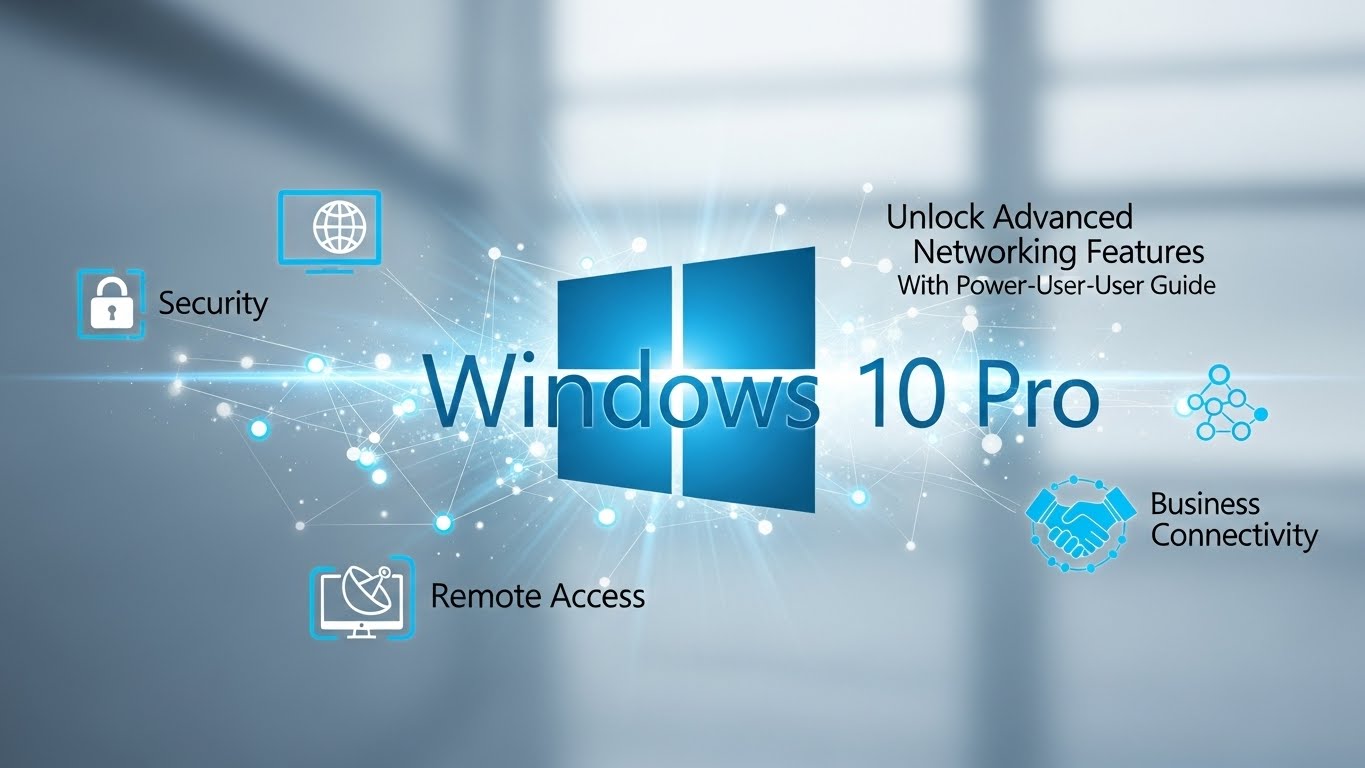
Windows 10 Home is fine for everyday browsing, entertainment, and casual work. But the moment you need serious networking tools—remote access, domain connectivity, centralized policy control, or stronger data protection—Windows 10 Pro becomes a different class of operating system.
If you’ve ever hit a wall trying to join a work network, host Remote Desktop, encrypt a drive, or manage multiple PCs properly, you’ve already discovered where Home stops and Pro begins. This guide walks through the advanced networking features Windows 10 Pro unlocks, explains how they help in real-world setups, and shows who should upgrade in 2025.
Windows 10 Pro vs Home: Why Pro Matters for Networking
Windows 10 Pro includes everything Home does, plus a set of professional-grade networking and security tools. Microsoft designed these features for business environments, IT management, and advanced users who want more control over how their devices connect and communicate.
In short:
- Home edition supports basic Wi-Fi/Ethernet use and simple sharing.
- Pro edition adds enterprise-level networking, identity management, encryption, and remote administration.
The result is a PC that fits smoothly into work or multi-device environments instead of fighting them.
1. Remote Desktop Host: True Remote Networking
One of the biggest Windows 10 Pro networking advantages is Remote Desktop hosting. Windows 10 Home can connect to other PCs, but it cannot host inbound Remote Desktop (RDP) sessions. Windows 10 Pro can. Microsoft Learn+1
Why this feature is so valuable
Remote Desktop lets you:
- access your office PC from home
- log into your workstation while traveling
- run apps or files stored on a powerful desktop remotely
- support family or staff without being physically present
Microsoft also recommends enabling RDP only on trusted networks and using strong passwords, which is essential for safe remote access. Microsoft Learn
Bottom line: If you work hybrid or manage multiple devices, Remote Desktop Host alone is a reason to use Pro.
2. Domain Join: Plug Into Business Networks
Windows 10 Pro can join:
- Active Directory domains
- Azure AD / Entra ID organizations
Windows 10 Home cannot.
That matters because most workplaces and schools use domain-based identity. Domain join enables centralized account login, shared printers, file servers, and controlled access to internal apps. Pro is the edition Microsoft expects for professional networks. Digital Tech & Productivity Tips+1
What domain join unlocks
- single sign-on across company systems
- access to shared drives and internal resources
- centralized user management
- secure onboarding/offboarding
If you’ve ever tried to connect a Home PC to a company system and got blocked, edition limits are the reason.
3. Group Policy Editor: Control Networking Like IT Pros
Windows 10 Pro includes Local Group Policy Editor (gpedit.msc), a powerful way to manage networking and security rules without risky registry edits.
Group Policy lets you enforce consistent settings across devices: remote access policies, firewall rules, update schedules, login standards, and more. It’s also the standard tool admins use for domain-managed PCs. Microsoft Learn+2blog.matrixpost.net+2
Practical networking uses
You can use Group Policy to:
- enable Remote Desktop across many PCs at once blog.matrixpost.net+1
- restrict RDP access to specific user groups Microsoft Learn+1
- enforce firewall exceptions for trusted apps
- control SMB file sharing behavior
- limit risky network features on shared PCs
This is a massive step up from manual device-by-device tuning.
4. BitLocker: Network-Grade Data Protection
Networking isn’t just about connections—it’s also about protecting data that moves around your devices. Windows 10 Pro includes BitLocker Drive Encryption, while Home relies on lighter device encryption or none at all.
BitLocker encrypts entire drives, meaning that even if someone steals your laptop or removes your SSD, they can’t access your files without your recovery key. It also supports BitLocker To Go for USB drives. Microsoft Learn+1
Why BitLocker is crucial in networked work
- protects shared business files on laptops
- prevents offline attacks on stolen devices
- supports centralized key recovery in business setups
- secures external drives that travel between computers
In any environment where files carry value—business, school, freelance work—BitLocker is one of Pro’s most important upgrades.
5. Hyper-V Virtualization: Safe Networking Labs
Windows 10 Pro includes Hyper-V, Microsoft’s built-in virtual machine platform. With Hyper-V, you can run isolated OS environments (Windows, Linux, test builds) right on your PC.
From a networking perspective, this is huge. You can build safe labs to practice:
- Active Directory setups
- server-client simulations
- firewall and routing tests
- cybersecurity training
- software sandboxing
Hyper-V is a Pro-only tool, and it gives power users a professional-grade networking playground on a single computer. Digital Tech & Productivity Tips+1
6. Advanced Firewall & Security Management
Both Home and Pro include Windows Defender Firewall, but Pro pairs it with policy-level control and enterprise security baselines through Group Policy.
That means you can control inbound/outbound rules at scale and ensure networking stays secure without micromanaging every PC.
If you run a small office or a multi-device home lab, this extra governance makes networking safer and more predictable. HelpWire+1
7. Assigned Access (Kiosk Mode) for Controlled Network PCs
Pro supports Assigned Access, a feature that locks a device to one app or a narrow set of functions.
This is useful for networked environments like:
- reception check-in PCs
- classroom devices
- retail POS systems
- public kiosks
Assigned Access helps you protect network devices from misuse without needing third-party lockdown software. Digital Tech & Productivity Tips
Who Should Upgrade to Windows 10 Pro?
Windows 10 Pro is the right choice if you are:
A business user or employee
You need domain join, BitLocker, and remote access that integrates cleanly with company networks.
A remote worker or freelancer
You benefit from Remote Desktop Host, encryption, and update control for stable work systems.
An IT student or power user
Hyper-V and Group Policy let you learn real networking and system administration skills.
A household with multiple managed PCs
Pro makes it easier to enforce consistent rules and protect devices shared by kids or family members.
When Windows 10 Home Is Enough
You probably don’t need Pro if you:
- use only one personal PC
- don’t need inbound Remote Desktop
- never join work/school domains
- don’t run virtual machines
- store no sensitive data locally
Home is still a strong consumer OS—but it’s not built for advanced networking.
Final Takeaway
Windows 10 Pro unlocks the networking features that turn a normal PC into a professional workstation:
- Remote Desktop Host for real remote access Microsoft Learn+1
- Domain and Azure AD join for business integration Digital Tech & Productivity Tips+1
- Group Policy Editor for centralized network control Microsoft Learn+1
- BitLocker for strong data protection Wikipedia+1
- Hyper-V for safe virtual networking labs Digital Tech & Productivity Tips+1
If your PC needs to do more than basic home computing, Windows 10 Pro gives you the tools to connect smarter, work remotely, and secure your data like a professional.