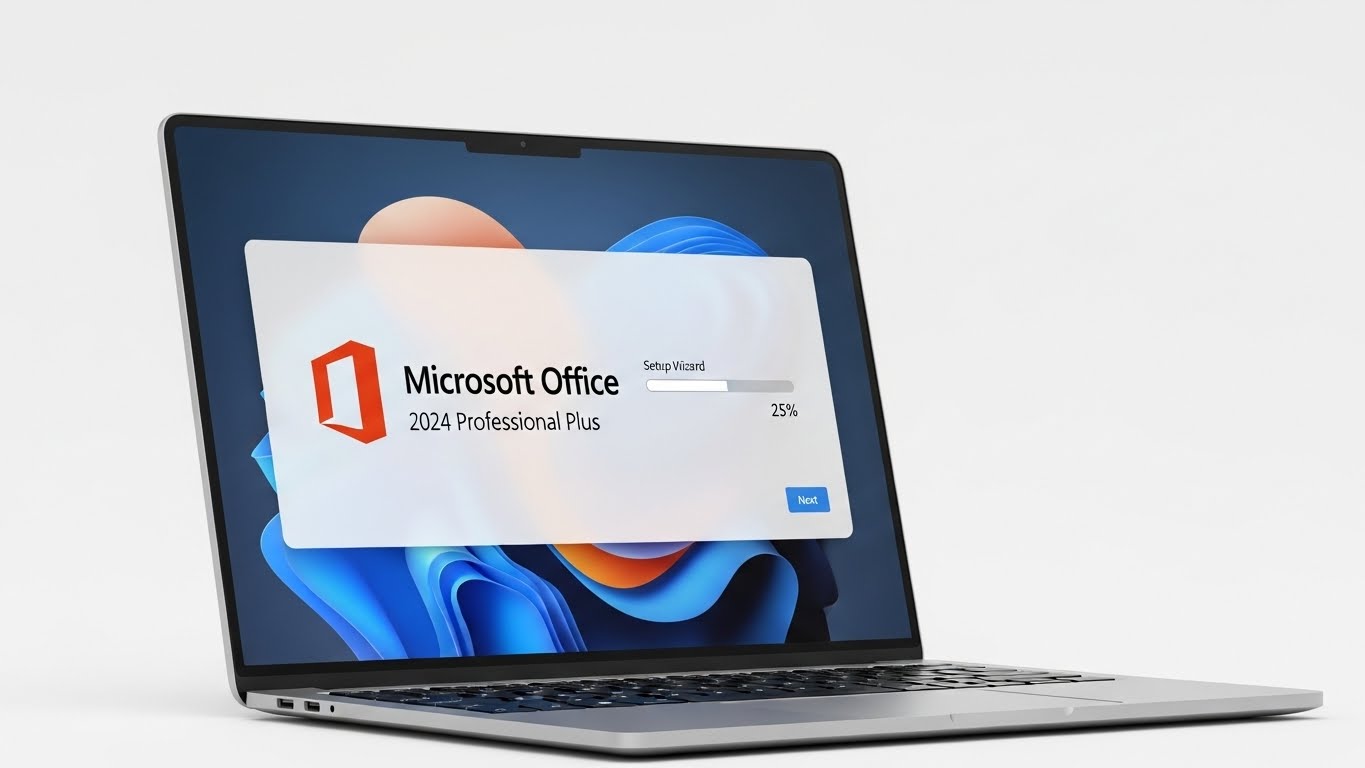
Microsoft Office 2024 Professional Plus is the most feature-packed perpetual version of Office, built for users who want full desktop apps—Word, Excel, PowerPoint, Outlook, OneNote, and Access—without a monthly subscription. Installing it is easy once you use the correct method for your license type. That last part matters, because Office Professional Plus 2024 is commonly distributed as a volume/LTSC product, meaning it often doesn’t install through the same “retail” flow as Office Home & Student. Microsoft Learn+1
This guide walks you through both installation paths step by step, explains how to activate Office 2024 Pro Plus correctly, and covers the most common errors people hit in 2025.
What You Need Before Installing Office 2024 Pro Plus
Get these ready first:
- A valid Office 2024 Professional Plus product key
This could be a retail-style key or a volume/LTSC key. Your install path depends on which one you have. Microsoft Learn+1 - A Microsoft account (for retail keys)
Retail keys must be redeemed to your Microsoft account, and Office activates when you sign in. I FIX PROBLEM - Windows 10 or Windows 11 (64-bit) + stable internet
Office 2024 is optimized for modern Windows systems, and you’ll download several gigabytes. I FIX PROBLEM
Step 1: Uninstall Older Office Versions (Highly Recommended)
If you already have Office 2016/2019/2021 or Microsoft 365 installed, remove it first to avoid conflicts.
How to uninstall:
- Open Control Panel → Programs → Programs and Features
- Select your existing Office version
- Click Uninstall
- Restart your PC
Old installs are the #1 reason for “can’t activate” or “newer version detected” messages. licendi.com+1
Step 2: Identify Your License Type (Retail vs LTSC/Volume)
Office 2024 Pro Plus uses two different installation models:
Option A) Retail key (Setup.office.com)
Choose this path if your seller instructions say:
- “Redeem on Setup.office.com”
- “Link to Microsoft account”
- “Retail / FPP key”
Retail Office installs through your Microsoft services page after redemption. I FIX PROBLEM
Option B) LTSC/Volume key (Office Deployment Tool)
Choose this path if your key is described as:
- “Office LTSC 2024 Professional Plus”
- “Volume License / MAK / KMS”
- “ProPlus2024Volume”
Microsoft support confirms Pro Plus is typically a volume product and must be installed with the Office Deployment Tool (ODT) rather than Setup.office.com. Microsoft Learn+1
If you’re not sure, try the retail method first. If Setup.office.com rejects your key, switch to the LTSC method.
Method 1: Install Office 2024 Pro Plus via Setup.office.com (Retail)
Step 3A: Redeem Your Product Key
- Go to Setup.office.com
- Sign in with your Microsoft account
- Enter your 25-character key
- Choose your country and language
- Click Redeem / Next
Once redeemed, your license is tied permanently to your account, so reinstalling later is simple. I FIX PROBLEM
Step 4A: Download the Official Installer
- After redemption, you’ll land in your Microsoft services page
- Find Office 2024 Professional Plus
- Click Install Office
- Download Setup.exe
Step 5A: Install Office
- Double-click Setup.exe
- Approve Windows security prompt
- Wait for installation to finish
- Click Close
Step 6A: Activate Office
- Open Word (or any Office app)
- Sign in with the same Microsoft account used during redemption
- Office activates automatically online I FIX PROBLEM
Method 2: Install Office 2024 Pro Plus with Office Deployment Tool (LTSC/Volume)
If your key is volume/LTSC, this is the correct and official route. Microsoft Learn+1
Step 3B: Download the Office Deployment Tool (ODT)
- Download Office Deployment Tool from Microsoft’s Download Center
- Run it and extract files into a folder like:
C:\Office2024ODT Microsoft Learn
Step 4B: Create a configuration.xml File
Inside that folder (where setup.exe is), create a file named configuration.xml.
Use a standard Office LTSC 2024 Pro Plus config. Microsoft Q&A examples reference ProPlus2024Volume and the PerpetualVL2024 channel. Microsoft Learn
Example:
<Configuration>
<Add OfficeClientEdition=”64″ Channel=”PerpetualVL2024″>
<Product ID=”ProPlus2024Volume”>
<Language ID=”en-us” />
</Product>
</Add>
<Display Level=”Full” AcceptEULA=”TRUE” />
</Configuration>
Want another language? Replace en-us with your language code (for example fr-fr, es-es, etc.). Microsoft Learn
Step 5B: Download Office Files
- Open Command Prompt as Administrator
Run:
cd C:\Office2024ODT
setup.exe /download configuration.xml
ODT pulls the official Office 2024 Pro Plus package from Microsoft’s CDN. Microsoft Learn+1
Step 6B: Install Office
After the download completes, run:
setup.exe /configure configuration.xml
Office installs silently or with a small UI (depending on your config). Microsoft Learn
Step 7B: Activate Office LTSC Pro Plus
Activation depends on your key type:
- MAK key: Open any Office app → File → Account → Change Product Key, then enter your MAK.
- KMS activation: Office activates automatically when your PC connects to your organization’s KMS server/network. Microsoft Learn+1
Common Office 2024 Pro Plus Installation Problems (and Fixes)
1) “This Product Key Can’t Be Redeemed”
This almost always means your key is volume/LTSC, not retail. Microsoft states Pro Plus isn’t sold as a normal consumer retail product. Microsoft Learn
Fix: install with ODT using Method 2.
2) Installer Freezes or Fails
Typical causes include leftover Office files or antivirus interference. licendi.com+1
Fixes:
- Uninstall old Office fully, then restart
- Temporarily pause third-party antivirus
- Run install again
3) “Unlicensed Product” After Install
Retail: you signed into the wrong Microsoft account.
LTSC: wrong Product ID or channel in XML. Microsoft Learn
Fix:
- Retail: sign out → sign back in with the account that redeemed the key
- LTSC: verify ProPlus2024Volume + PerpetualVL2024, reinstall if needed
4) Office Apps Don’t Show Up
Sometimes Windows indexing lags.
Fix: search for “Word 2024” in Start Menu, open it once, then pin it.
Best Practices for a Clean Office 2024 Install
- Use 64-bit Office unless a legacy add-in forces 32-bit. Office 2024 is built for 64-bit Windows. I FIX PROBLEM
- Keep your config.xml. You can reuse it to reinstall quickly. Microsoft Learn
- Update right away. Open any app → File → Account → Update Options.
- Store your key securely. Even with account-based activation, you may need it later for device swaps.
Final Thoughts
Installing Microsoft Office 2024 Professional Plus is straightforward once you pick the correct lane:
- If you have a retail key, redeem on Setup.office.com, download, install, then activate by signing in. I FIX PROBLEM
- If you have an LTSC/volume key, use the Office Deployment Tool with a configuration.xml that targets ProPlus2024Volume, then activate using MAK or KMS.