Skip to content
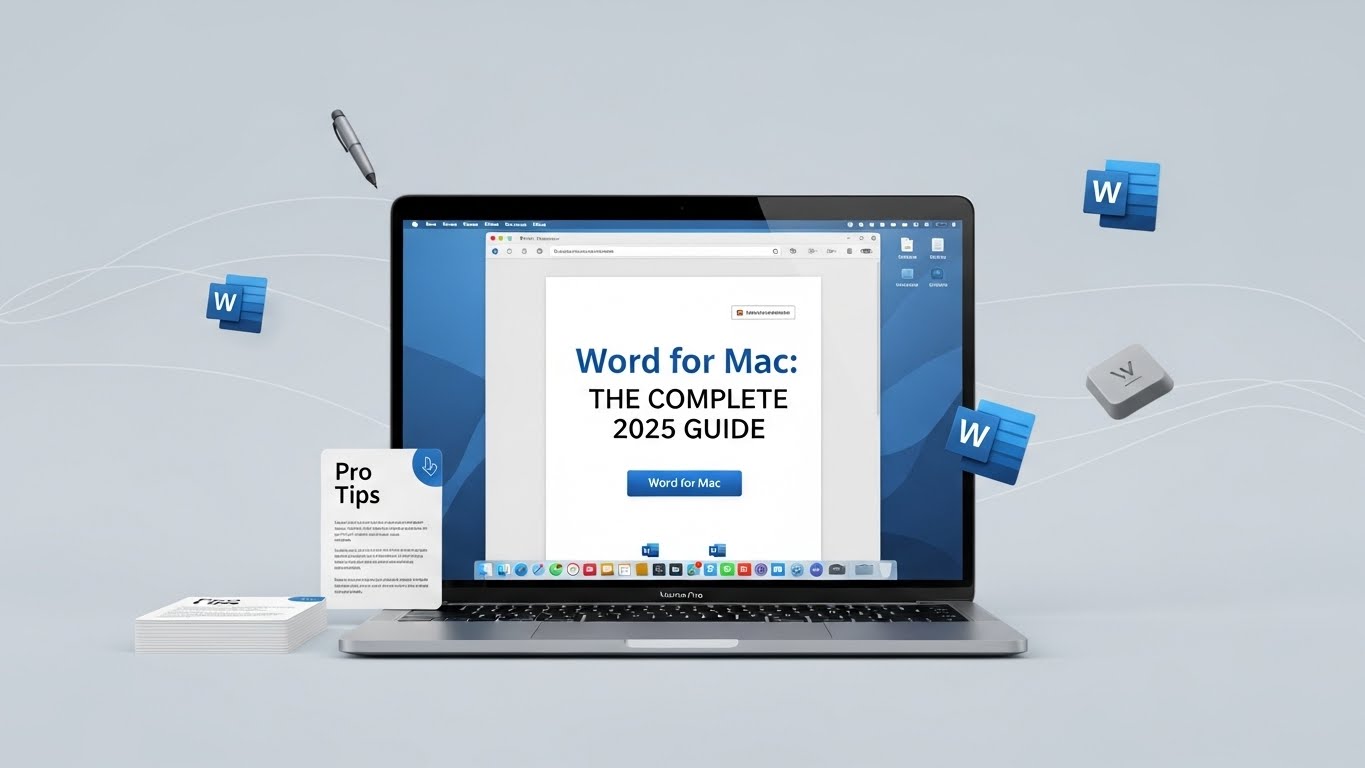
Microsoft Word for Mac has come a long way from being the “almost-the-same” cousin of the Windows version. Today, Word on macOS is a polished, powerful writing and formatting tool that supports modern collaboration, smart editing, cloud syncing, and native Mac experiences like Dark Mode and system-level shortcuts. Whether you’re drafting essays, writing business proposals, or editing long-form reports, Word for Mac delivers a professional workflow without forcing you to leave your Apple ecosystem. Microsoft Download Center+1
In this guide, you’ll learn what makes Word for Mac special, which features matter most in daily work, how to set it up correctly, and the best productivity tricks to master your documents faster in 2025.
What Is Microsoft Word for Mac?
Word for Mac is the macOS desktop version of Microsoft Word, available as part of:
- Microsoft 365 subscription (always updated)
- Office 2021/2024 perpetual license (one-time purchase)
You get the full Word experience: professional formatting tools, templates, spellcheck, Track Changes, references, and export options, with an interface optimized for macOS. Microsoft’s own Word for Mac guides confirm that the Mac edition is a first-class product with the same core writing engine as Windows. Microsoft Download Center+1
Why Word for Mac Is Worth Using in 2025
Mac users have more writing options than ever, from Pages to Google Docs. But Word remains the standard for professional documents.
Key reasons people stick with Word on Mac
- Highest compatibility with DOCX files used in schools and workplaces
- Advanced formatting and layout control
- Powerful collaboration when working with Windows or cloud users
- Industry-standard features for citations, legal formatting, and long documents Microsoft Download Center+1
If you exchange docs with anyone using Word on Windows (which is most offices), Word for Mac keeps everything consistent.
Core Features of Word for Mac You Should Know
1. Modern Templates and Styles
Word for Mac includes built-in templates for resumes, reports, invoices, academic layouts, and more. Templates handle spacing, fonts, header structure, and formatting so you don’t reinvent the wheel. Microsoft Download Center
Pro tip: After choosing a template, customize it with Styles so every heading and paragraph matches automatically. Styles are your secret weapon for clean, consistent documents.
2. AutoSave + OneDrive Sync
When your file is stored in OneDrive or SharePoint, Word AutoSave continuously in the background. That means fewer “did I save?” moments and easier recovery after crashes. Microsoft Download Center+1
If you prefer offline work, Word still saves locally just like classic versions. You can move a file to the cloud anytime.
3. Track Changes and Comments
Track Changes works the same on Mac as Windows: edits show clearly, reviewers can approve/reject changes, and comments stay threaded. This makes Word for Mac a strong choice for teams and students who need real revision workflows. Microsoft Support
4. Reference Tools for Academic and Business Writing
Word for Mac supports:
- citations and bibliography management
- footnotes and endnotes
- table of contents auto-generation
- captions and cross-references Erin Wright Writing
If you write essays, theses, legal docs, or reports, these tools save hours.
5. Built-In Dictation and Proofing
Mac users love dictation, and Word integrates smoothly with macOS dictation and Microsoft’s own proofing tools. You can draft by voice, then tighten clarity with spelling/grammar suggestions. Microsoft Download Center+1
Word for Mac vs Word for Windows: What’s the Difference?
Most everyday tools are identical. But a few differences still matter:
Word for Mac strengths
- cleaner macOS-native UI
- smoother trackpad gestures
- system-level Dark Mode and accessibility integration
- easier iCloud/OneDrive coexistence Microsoft Download Center+1
Still-existing gaps (depending on version)
- some niche VBA macro behaviors differ
- certain enterprise plug-ins are Windows-only
- a few advanced layout tools appear later on Mac when Microsoft rolls out updates Microsoft Support+1
For 95% of users, those gaps never show up. If you live inside legacy macros or Windows-specific add-ins, check compatibility first.
How to Get Word for Mac (Safely)
You have three clean options:
- Microsoft 365
Download from Microsoft and sign in. You get Word plus continuous new features. Microsoft Download Center+1 - Office 2021/2024 for Mac
One-time purchase versions that install Word permanently on one Mac. Microsoft Download Center - Mac App Store (Word app)
Installs Word, but most features still require sign-in with a Microsoft license. CleanMyMac
Avoid “free cracked Word for Mac” downloads. They’re a common malware vector and break updates.
Best Word for Mac Tips and Tricks (High-Impact Only)
1. Master Mac Word Shortcuts
Learning even a few shortcuts changes your speed instantly.
Top essentials:
- Cmd + B / I / U = bold / italic / underline
- Cmd + Shift + C then Cmd + Shift + V = copy/paste formatting
- Cmd + D = duplicate selected text or object
- Cmd + K = insert hyperlink
- Cmd + Option + Shift + V = paste as plain text (no formatting) support.loomanalytics.com+2UMA Technology+2
Shortcuts are the fastest way to “feel fluent” in Word on Mac.
2. Create Custom Keyboard Shortcuts
If you repeat specific actions daily (like applying a style or inserting a symbol), set your own shortcut.
Go to:
Tools → Customize Keyboard
Then assign a custom hotkey to any Word command. peterronhovde.com
3. Use Navigation Pane for Long Documents
For long reports or books:
- open View → Navigation Pane
- use headings to jump sections instantly.
Once you build headings properly, the Navigation Pane becomes your document map. Erin Wright Writing
4. Fix Formatting with “Reveal Formatting”
Sometimes text looks wrong and you don’t know why. Use Reveal Formatting to see exactly what’s applied.
Home → Styles pane → Reveal Formatting (location may vary by version).
It shows font, spacing, indents, and hidden style conflicts so you can clean up fast. Erin Wright Writing
5. Use Section Breaks Instead of Manual Layout Hacks
Want different headers, numbering, or margins in one document? Don’t fight it with spaces.
Use:
Layout → Breaks → Section Breaks
Section breaks keep formatting stable and prevent chaos later. Erin Wright Writing
6. Turn on AutoCorrect and Customize It
AutoCorrect is useful, but only when tuned to your writing habits.
Go to:
Word → Preferences → AutoCorrect
You can add shortcuts like:
- “addr” → full address
- “sig” → signature block
- common typos you always make Microsoft Download Center
Best Practices for Clean Professional Documents
If you want your Word docs to look “executive-ready,” follow these rules:
- Use Styles, not manual formatting.
- Keep line spacing consistent (1.15–1.5 is usually ideal).
- Avoid overusing fonts. Two font families max.
- Use real lists and headings so Word can generate a table of contents.
- Export to PDF for final sharing to lock layout. Microsoft Download Center+1
These habits take minutes but level up your output massively.
Troubleshooting Common Word for Mac Issues
Word feels slow
Try:
- closing huge background apps
- saving large files to local storage (then syncing later)
- disabling unneeded add-ins in Tools → Templates and Add-ins. Microsoft Support
Formatting changes when sent to Windows users
Fix by:
- sticking to standard fonts (Calibri, Times New Roman, Arial)
- embedding fonts in Preferences → Save → Embed fonts (if available)
- exporting to PDF when layout must not shift. Erin Wright Writing
Cloud syncing conflicts
Make sure AutoSave is on and avoid editing the same file offline on two devices at once. OneDrive version history can recover prior edits if needed. Microsoft Download Center
Final Thoughts
Word for Mac is not a “lite” version anymore. It’s a full-strength writing platform that fits naturally into macOS while keeping perfect compatibility with the world’s most common document format. If you learn a few shortcuts, rely on Styles, and use long-document tools like headings and section breaks, you’ll write faster, format cleaner, and collaborate without surprises.