Skip to content
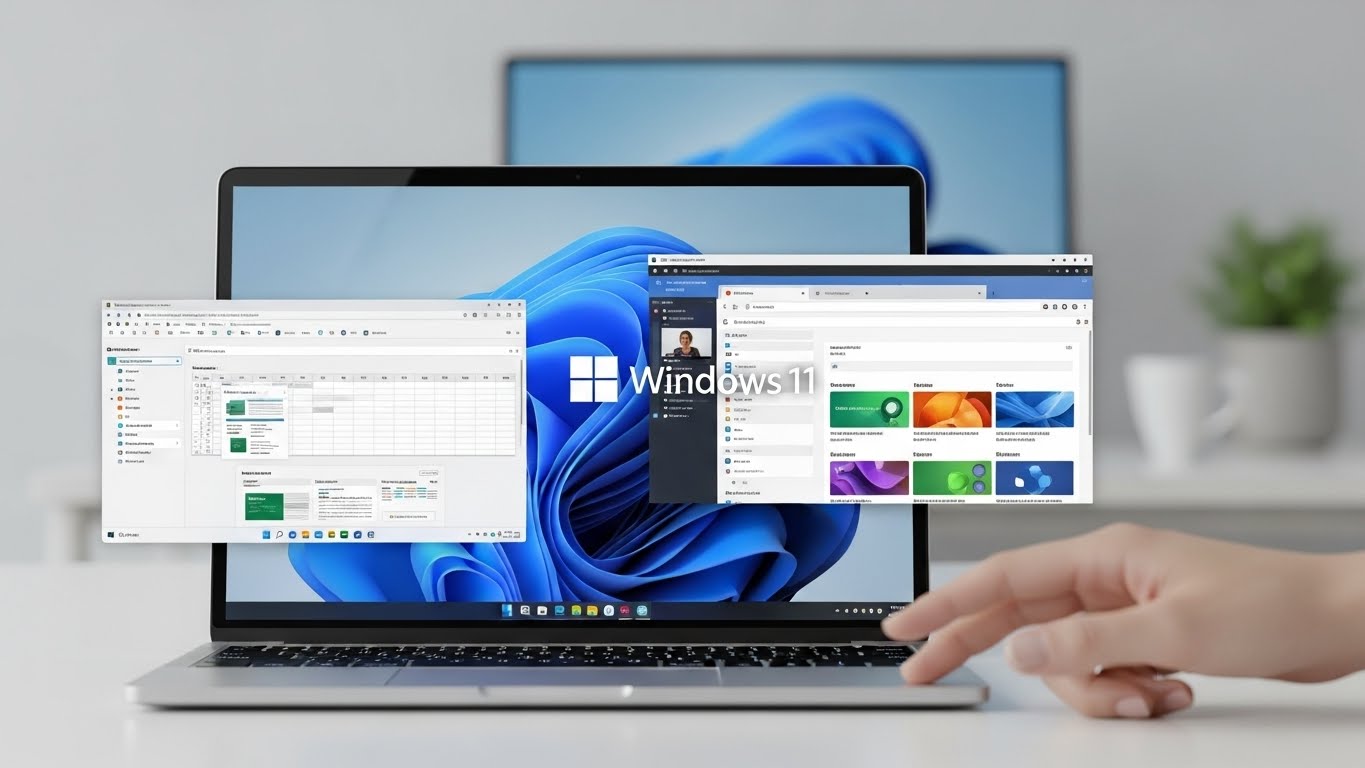
Windows 11 is packed with features meant to make everyday computing smoother, faster, and more focused. One of the most useful upgrades for multitaskers is Virtual Desktops—a simple but powerful way to create multiple workspaces on one PC. If you’re juggling work, school, side projects, or personal life on the same machine, virtual desktops can help you stay organized, reduce clutter, and switch tasks without losing your flow. ecokeys.co.uk
In this guide, you’ll learn what Windows 11 virtual desktops are, why they matter, how to set them up, and how to customize them for maximum productivity.
What Are Virtual Desktops in Windows 11?
Think of virtual desktops as separate “screens” or environments that live inside your computer. Instead of piling every app and window onto one crowded desktop, you can split them into different spaces. For example, one desktop might be for work apps like Outlook and Excel, another for creative tools like Photoshop, and another just for entertainment. Everything runs on the same device, but each desktop stays visually separated. ecokeys.co.uk
This is especially handy if you often feel overwhelmed by too many open tabs or apps at once.
Why Use Virtual Desktops? Key Benefits
Virtual desktops aren’t just a neat trick—they solve real workflow problems. Here’s what makes them worth using:
1. Cleaner, More Organized Workflow
Instead of hunting through a stack of windows, you can keep related tasks grouped together. That means less visual noise and fewer distractions. ecokeys.co.uk
2. Faster Context Switching
When tasks are separated, your brain doesn’t have to re-orient every time you switch. You jump into the right workspace and keep going. ecokeys.co.uk
3. Better Focus
Having a dedicated desktop for one activity (like writing, coding, or studying) helps reduce temptation to drift into unrelated apps. ecokeys.co.uk
4. Great for Multi-Project Users
If you’re managing multiple clients, classes, or hobbies, you can give each its own desktop so nothing collides.
How to Create a New Virtual Desktop
Setting up a virtual desktop in Windows 11 takes seconds:
- Open Task View
- Click the Task View icon on the taskbar, or press Windows + Tab. ecokeys.co.uk
- Click the Task View icon on the taskbar, or press Windows + Tab. ecokeys.co.uk
- Add a New Desktop
- At the top of Task View, click New desktop.
- A fresh desktop appears instantly. ecokeys.co.uk
- At the top of Task View, click New desktop.
You can repeat this as many times as needed, depending on your workflow.
How to Switch Between Virtual Desktops
Windows gives you two easy ways to move between desktops:
Using Task View
- Press Windows + Tab and select the desktop you want. ecokeys.co.uk
Using Keyboard Shortcuts
- Windows + Ctrl + Left Arrow → go to the desktop on the left
- Windows + Ctrl + Right Arrow → go to the desktop on the right ecokeys.co.uk
If you’re aiming for speed, keyboard shortcuts are the way to go.
Moving and Pinning Apps Across Desktops
Once you have multiple desktops, you’ll want to control where apps live.
Move an App to Another Desktop
- Open Task View (Windows + Tab).
- Drag the app window onto another desktop thumbnail.
- Or right-click the window → Move to → choose a desktop. ecokeys.co.uk
- Or right-click the window → Move to → choose a desktop. ecokeys.co.uk
Pin Apps So They Show Everywhere
Some tools—like music players, chats, or timers—are useful on all desktops.
- Open Task View.
- Right-click the app window.
- Choose:
- Show this window on all desktops, or
- Show windows from this app on all desktops. ecokeys.co.uk
- Show this window on all desktops, or
This keeps your essentials available whatever workspace you’re in.
Customizing Virtual Desktops for Better Clarity
Windows 11 lets you personalize desktops so they feel distinct.
Rename Your Desktops
Naming helps your brain label tasks faster.
- Open Task View.
- Right-click a desktop thumbnail.
- Select Rename, type a label (like “Work” or “Design”), press Enter. ecokeys.co.uk
Set Different Wallpapers
Want a visual cue for each workspace? Assign custom backgrounds.
- Open Settings (Windows + I).
- Go to Personalization → Background.
- Pick the desktop from the dropdown and choose a wallpaper. ecokeys.co.uk
A calm blue for work and a bright photo for personal use makes a real difference.
Pro Tips: Use Virtual Desktops Like a Power User
Here are smart ways to combine desktops with Windows 11’s other productivity features.
Snap Layouts for Multitasking
Snap Layouts let you arrange multiple windows neatly on one screen.
- Hover over a window’s maximize button.
- Pick a layout.
- Drop apps into the grid. ecokeys.co.uk
Do this per desktop and you can build repeatable work setups (for example: browser + notes + chat).
Build Desktop “Zones” by Workflow
Try setting up desktops like these:
- Work Desktop: email, calendar, Teams/Slack, spreadsheets
- Personal Desktop: social media, music, shopping, messages
- Project Desktops: one per client or task with dedicated files and tools ecokeys.co.uk
This structure is the real secret sauce—virtual desktops are only as good as how you organize them.
Tweak the Taskbar to Match Your Style
A clean taskbar makes desktop switching even smoother.
- Go to Settings → Personalization → Taskbar.
- Adjust what icons show, grouping behavior, and other preferences. ecokeys.co.uk
Less clutter here means faster navigation everywhere.
Troubleshooting Windows 11 Virtual Desktops
Virtual desktops usually work flawlessly, but here are quick fixes for common issues:
Apps Show Up on the Wrong Desktop
If a window appears everywhere, it might be pinned.
- Open Task View
- Right-click the app
- Disable any “show on all desktops” option ecokeys.co.uk
Sluggish Performance
Multiple desktops won’t normally slow a PC, but older machines may struggle if many apps are open.
- Close programs you aren’t using
- Check CPU/RAM in Task Manager
- Consider a RAM upgrade if this is frequent ecokeys.co.uk
Frequently Asked Questions
Can I Use Different Desktop Icons on Each Desktop?
No—desktop icons stay the same across all virtual desktops. You can still separate workflows using different windows and taskbar setups. ecokeys.co.uk
How Do I Delete a Desktop?
- Open Task View.
- Hover over the desktop.
- Click the X.
Windows moves any open apps to another desktop rather than closing them. ecokeys.co.uk
Do Virtual Desktops Save After Restart?
Not currently. After rebooting, you’ll need to recreate your desktops. ecokeys.co.uk
Optimize Virtual Desktops for Best Performance
To get the smoothest experience, make sure your device meets Windows 11 requirements. At minimum, Microsoft recommends a modern dual-core CPU, 4 GB RAM, and DirectX-12 compatible graphics. More RAM and SSD storage will make switching desktops feel instant. ecokeys.co.uk
Also, treat each desktop like a “room”: keep only what you need open there. Your system (and your brain) will thank you.
Final Thoughts: Virtual Desktops Are a Must-Use Windows 11 Feature
Windows 11 virtual desktops are one of the easiest ways to upgrade how you work. They help you organize tasks, focus better, reduce clutter, and stay productive across multiple projects. Whether you’re a student, remote worker, creator, or just someone who hates messy screens, this feature gives you structure without extra software.