Skip to content
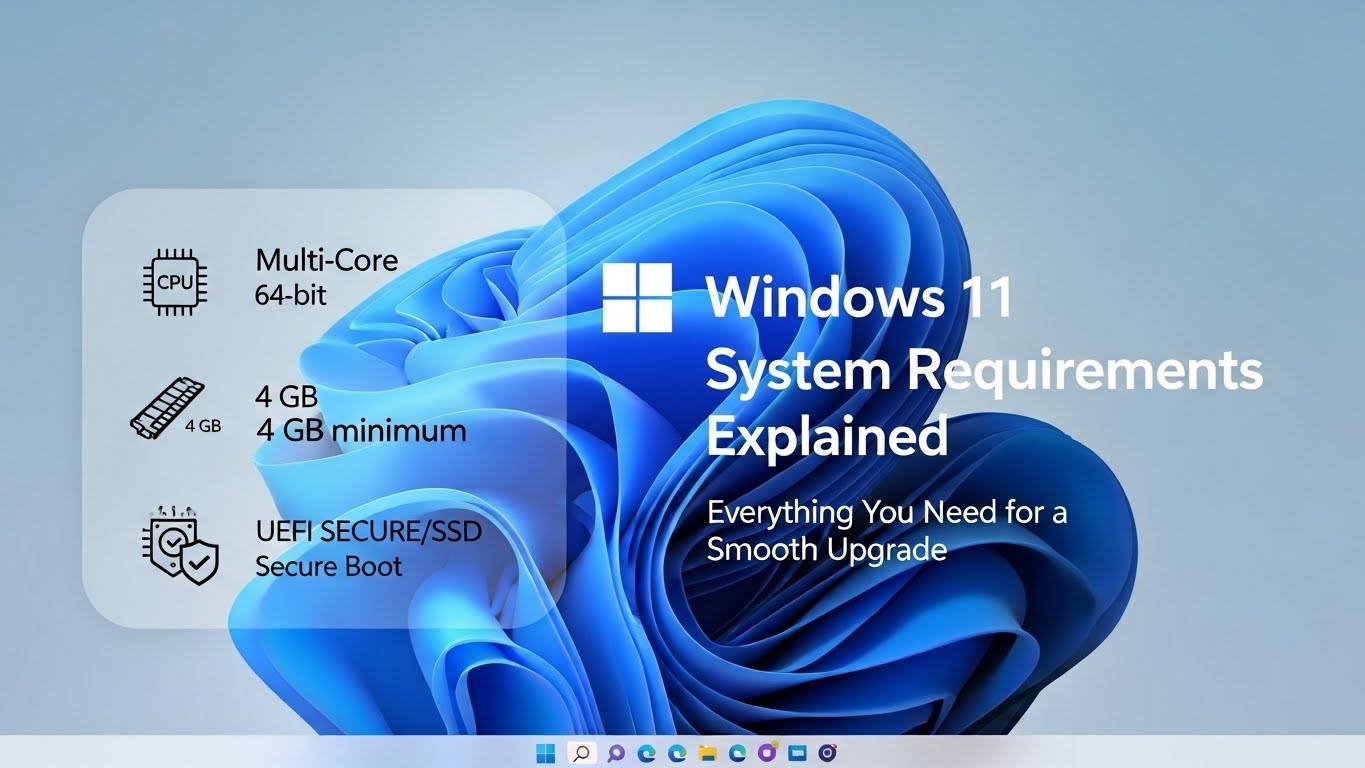
Windows 11 brings a cleaner interface, smarter multitasking, and modern security features. But before you hit the upgrade button, you need to know if your PC can actually run it. Microsoft raised the hardware bar compared to Windows 10, and for good reason: Windows 11 is designed around speed, stability, and stronger protection against modern threats. ecokeys.co.uk
This comprehensive guide breaks down Windows 11 system requirements in simple terms, explains why they matter, and shows how to check your device. Whether you’re upgrading an older laptop or buying a new PC, you’ll walk away knowing exactly what to look for.
Why Windows 11 Has Stricter Requirements
Unlike past Windows releases, Windows 11 focuses heavily on security and performance. Features like hardware-based encryption, secure boot processes, and virtualization protections require newer chips and firmware. The result is an operating system that’s safer by default and better optimized for today’s apps, games, and hybrid work styles. ecokeys.co.uk
Still, those benefits only happen when your hardware meets the baseline.
Minimum Windows 11 System Requirements (In Detail)
Here’s what Microsoft considers the minimum to install and run Windows 11. If your device falls short, the installer may block the upgrade. ecokeys.co.uk
1. Compatible 64-Bit Processor (CPU)
Windows 11 needs:
- A 64-bit CPU
- 1 GHz or faster
- 2 cores or more
- From an approved generation
Supported families include Intel 8th Gen Core or newer, AMD Ryzen 2000 series or newer, and Qualcomm Snapdragon 850 or newer. These newer processors support modern instruction sets and security features Windows 11 relies on. ecokeys.co.uk
2. Memory (RAM)
The minimum RAM requirement is 4 GB, but that’s the bare entry point. If you want smooth multitasking or plan to use heavier apps (design tools, IDEs, modern browsers with lots of tabs), aim for 8 GB or more. More memory means fewer slowdowns and better responsiveness. ecokeys.co.uk
3. Storage Space
To install Windows 11, you need at least 64 GB of storage. Realistically, that number grows quickly once updates, apps, and personal files pile up. A larger SSD (especially NVMe) helps Windows boot faster and makes everything—from opening apps to loading games—feel snappier. ecokeys.co.uk
4. UEFI Firmware + Secure Boot
Windows 11 requires UEFI firmware and Secure Boot capability. UEFI is the modern replacement for BIOS and supports faster startup and better system protection. Secure Boot prevents untrusted software from running during startup, blocking many forms of malware before Windows even loads. ecokeys.co.uk
5. TPM 2.0 (Trusted Platform Module)
This is the requirement that disqualifies most older machines. Windows 11 mandates TPM version 2.0, a hardware security module that stores encryption keys and verifies system integrity. TPM enables things like:
- Windows Hello
- BitLocker drive encryption
- Other advanced security layers
In short, TPM 2.0 helps keep your device and data safe from tampering. ecokeys.co.uk
6. Graphics Card (GPU)
Your graphics hardware must support:
- DirectX 12
- WDDM 2.0 driver
This ensures compatibility with Windows 11’s modern UI and better gaming performance. DirectX 12 also improves efficiency in graphics-heavy workloads. ecokeys.co.uk
7. Display Requirements
Windows 11 needs a screen that is:
- 720p resolution or higher
- 9 inches or larger diagonally
- 8-bit color
You can use higher resolutions (1080p, 2K, 4K) for sharper visuals, but 720p is the minimum baseline. ecokeys.co.uk
8. Internet Connection
For Windows 11 Home, you must have an internet connection during setup. This allows Microsoft account sign-in and ensures the system installs latest updates and drivers right away. Internet is also essential long-term for security updates. ecokeys.co.uk
Advanced Windows 11 Features (Not Required, but Worth It)
Some Windows 11 upgrades shine only when paired with better hardware. These aren’t required to install the OS, but they unlock major performance benefits. ecokeys.co.uk
DirectStorage for Faster Gaming
If you have:
- An NVMe SSD
- A DirectStorage-compatible GPU
Windows 11 can dramatically cut game load times and improve asset streaming. ecokeys.co.uk
Auto HDR
With a compatible HDR monitor, Auto HDR upgrades lighting and colors in supported games automatically for richer visuals. ecokeys.co.uk
5G Support (On Cellular Devices)
Windows 11 supports 5G on devices built for cellular connectivity, giving mobile users faster network performance. ecokeys.co.uk
Recommended Specs for the Best Windows 11 Experience
Meeting the minimum requirements gets Windows 11 running—but not always running well. For a smoother, long-term setup, aim higher:
- CPU: modern multi-core chip (Intel 10th Gen+ or Ryzen 3000+)
- RAM: 8–16 GB
- Storage: 256 GB+ SSD, ideally NVMe
- GPU: DirectX 12 capable mid-range or better
These specs support multitasking, creative workflows, and newer games without hardware strain. ecokeys.co.uk
Windows 11 Compatibility: What to Expect
App Compatibility
Most Windows 10 apps work fine on Windows 11, but it’s smart to check vendor sites for critical software (business tools, niche drivers, old peripherals). ecokeys.co.uk
Driver Support
Manufacturers continue releasing Windows 11 drivers, so newer hardware is generally plug-and-play. Older devices may struggle if official drivers don’t exist. ecokeys.co.uk
What About Legacy PCs?
If your machine doesn’t meet the minimum requirements, Windows 11 may not install normally. In that case, you can:
- Stick with Windows 10 (supported until October 14, 2025)
- Upgrade hardware
- Buy a newer PC
Microsoft’s cutoff reflects that Windows 11 is built for a more modern hardware era. ecokeys.co.uk
How to Check If Your PC Meets Windows 11 Requirements
Option 1: Use PC Health Check
Microsoft’s PC Health Check tool scans your system and tells you whether you qualify. It also highlights what component needs upgrading if you don’t. ecokeys.co.uk
Option 2: Manual Check (Quick Steps)
- CPU + RAM:
Settings → System → About - Storage:
File Explorer → This PC - GPU:
Run dxdiag → Display tab - UEFI + Secure Boot:
Run msinfo32 → check BIOS Mode - TPM:
Run tpm.msc → verify TPM version ecokeys.co.uk
Doing it manually helps if you want deeper control over upgrade decisions.
Can You Install Windows 11 on Unsupported Hardware?
People often ask this, and the answer is: yes, but with risk. There are registry edits and installation workarounds that bypass TPM 2.0 and Secure Boot checks. However, installing Windows 11 this way may produce:
- Reduced performance
- Security weaknesses
- Potential update limitations
If you use a workaround, do it knowingly and back up your data first. ecokeys.co.uk
Final Takeaway: Upgrade Smart, Not Blind
Windows 11 system requirements may feel strict, but they exist to deliver a faster, safer, and more reliable computing experience. If your PC meets the minimum specs, you can upgrade confidently. If it exceeds them, Windows 11 will feel genuinely modern—especially with features like DirectStorage and Auto HDR.