Skip to content
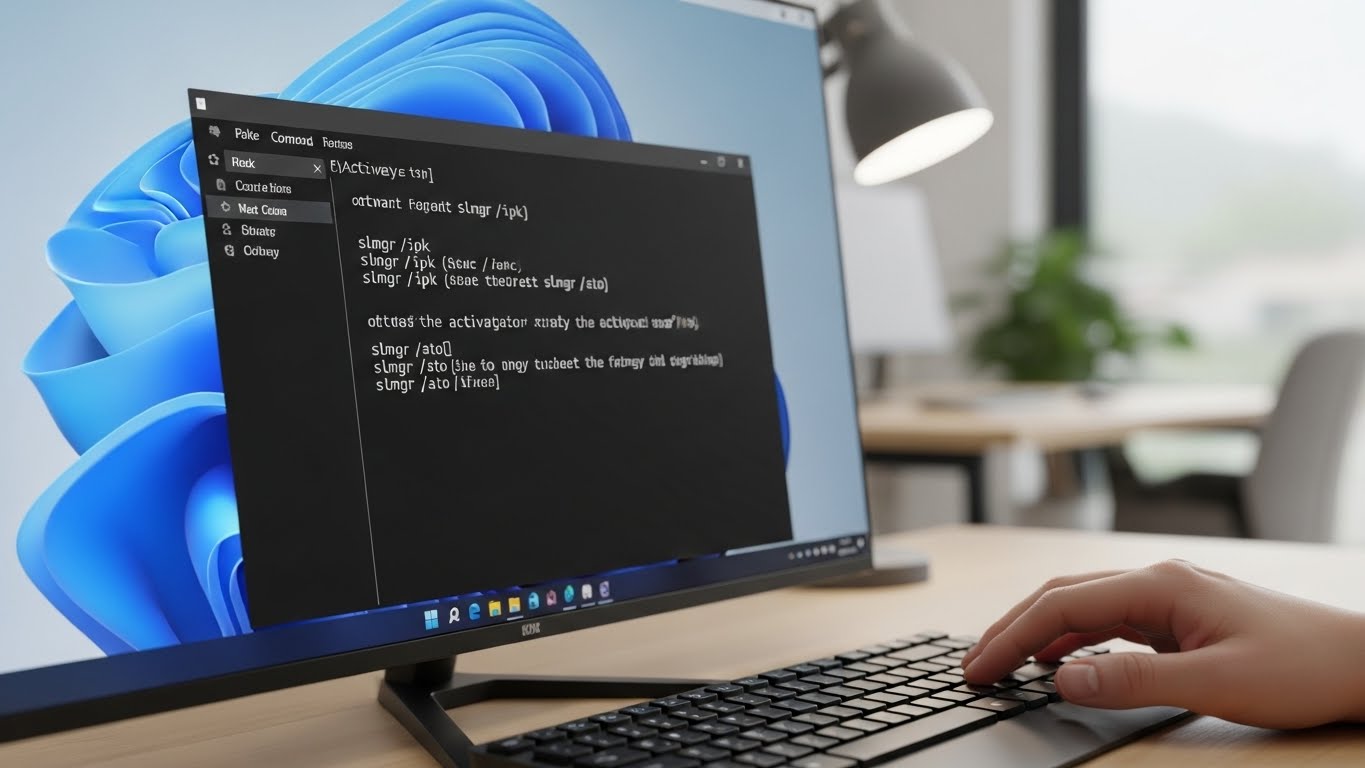
Activating Windows 11 is more than a formality. A properly activated system unlocks personalization features, ensures you receive full security updates, and confirms your license is genuine. Most people activate through Settings, but sometimes that screen fails, you’re working on multiple PCs, or you simply prefer a faster, more technical route. That’s where the Command Prompt (CMD) comes in.
Windows includes a built-in licensing script called SLMGR (Software Licensing Management Tool). With a few simple commands, you can install a product key, force online activation, verify license status, or open the phone-activation wizard. This guide shows the legitimate way to activate Windows 11 using CMD—no hacks, no risky bypasses, just Microsoft-supported commands you can trust. Support Your Tech+3GeeksDigit.Com+3The Windows Club+3
Why Activate Windows 11 Using Command Prompt?
CMD activation is useful in several real-world situations:
- Settings activation won’t work. Sometimes the activation UI glitches or throws unexplained errors. CMD gives you a direct path. Support Your Tech+1
- You’re a technician or IT admin. If you activate many devices, CMD is quicker and easier to document or script. The Windows Club
- You need to troubleshoot licensing. SLMGR can display detailed license information that Settings doesn’t show. The Windows Club+1
- You need offline/phone activation. CMD can launch the official phone wizard. GeeksDigit.Com+1
If you have a valid Windows 11 key, CMD activation is clean, fast, and fully supported by Microsoft.
Before You Start: What You Need
To activate Windows 11 with command line successfully, make sure you have:
- A genuine Windows 11 product key
It’s a 25-character key like: XXXXX-XXXXX-XXXXX-XXXXX-XXXXX. - Administrator access
SLMGR changes licensing state, so you must run CMD as admin. The Windows Club+1 - Internet connection (for online activation)
If you don’t have internet, skip to the phone activation section. GeeksDigit.Com+1
Step 1: Open Command Prompt as Administrator
- Click Start and type cmd.
- Right-click Command Prompt → choose Run as administrator.
- Approve the User Account Control prompt.
You’ll know you’re in elevated CMD because the title bar says “Administrator: Command Prompt.” Lifewire+1
Step 2: Install Your Windows 11 Product Key via CMD
In the admin Command Prompt, type:
slmgr /ipk YOUR-PRODUCT-KEY
Example:
slmgr /ipk W269N-WFGWX-YVC9B-4J6C9-T83GX
Then press Enter.
What this does:
- /ipk = install product key
- Windows stores the key locally and prepares it for activation. The Windows Club+2Lifewire+2
You should see a confirmation window saying the key installed successfully.
Step 3: Activate Windows 11 Online
Next, run:
slmgr /ato
What this does:
- /ato = activate online
- Windows contacts Microsoft’s activation servers and validates the license. The Windows Club+1
If activation works, you’ll get a message confirming Windows is activated.
Step 4: Verify Activation Status
To confirm everything is legit, run:
slmgr /xpr
What this does:
- /xpr = shows whether Windows is permanently activated or if a license will expire. The Windows Club+2TechBloat+2
You’ll see one of these results:
- Windows is permanently activated (perfect)
- Windows is in notification mode (not activated)
- Expiration date shown (temporary license)
Useful SLMGR Commands for Windows 11 Licensing
CMD can do much more than activate. Here are the most useful license commands:
Show basic license info
slmgr /dli
Gives a quick summary of edition, activation channel, and last 5 characters of the key. Lifewire+1
Show detailed license info
slmgr /dlv
Displays deeper diagnostics: activation IDs, license status, remaining rearm count, and KMS details if applicable. The Windows Club+1
Uninstall the current product key (for troubleshooting)
slmgr /upk
Removes the active key from the system. Helpful if you typed the wrong key or need to swap licenses. The Windows Club
Reset activation timers (advanced; limited uses)
slmgr /rearm
Resets certain activation timers. This is mostly for enterprise imaging and evaluation scenarios—not a replacement for real activation. The Windows Club+1
How to Activate Windows 11 by Phone (Offline Method)
If online activation fails or the PC has no internet, use Microsoft’s phone activation wizard.
In admin CMD, type:
slui 4
- Press Enter.
- Select your country/region.
- Call the displayed number and follow Microsoft’s automated steps.
This is a fully official method for users who can’t activate online. GeeksDigit.Com+1
Common CMD Activation Errors and Fixes
Error: “0xC004F050 – The product key is invalid”
Causes
- You entered the key wrong.
- The key doesn’t match your Windows edition (Home vs Pro).
- The key is not genuine. The Windows Club+1
Fix
- Re-type carefully (watch 0/O, B/8).
- Confirm your edition in Settings → System → About, then use the correct key.
Error: “0xC004F074 – Activation server unavailable”
Causes
- No internet.
- Microsoft servers temporarily unreachable.
- KMS server not reachable in enterprise setups. The Windows Club+1
Fix
- Check your connection and try again.
- If you’re on a work PC, connect to your corporate network/VPN.
- Use slui 4 for phone activation.
Error: “The key is already in use”
Causes
- The license is tied to another computer or Microsoft account.
- You exceeded activation limits. The Windows Club+1
Fix
- If you are reinstalling on the same device, it may activate after a restart.
- Otherwise, use phone activation or contact Microsoft support with proof of purchase.
Error: Activation succeeds but still shows “Activate Windows” watermark
Fix checklist
- Run slmgr /xpr to confirm status. TechBloat+1
- Restart your PC.
- Make sure Windows Update is fully caught up.
If needed, re-run:
slmgr /ato
Best Practices for Safe Windows 11 Activation
- Use only legitimate keys and methods. CMD is powerful, but it should never be used to bypass licensing. The steps above are Microsoft-supported. GeeksDigit.Com+2The Windows Club+2
- Match the key to your edition. A Pro key won’t activate Home, and vice-versa. The Windows Club+1
- Keep a record of your license. Store your key and purchase proof somewhere safe.
- Avoid third-party activation scripts. They often install malware or tamper with system files.
Final Thoughts
Activating Windows 11 with Command Prompt is simple, fast, and official—as long as you use a genuine product key. The core flow is:
- Open CMD as admin
- Install key: slmgr /ipk YOUR-KEY
- Activate: slmgr /ato
- Verify: slmgr /xpr
If online activation fails, slui 4 gives you a trusted offline/phone alternative. With these commands in your toolkit, you can activate, verify, and troubleshoot Windows 11 licensing like a pro—without risking your PC or your data.