Skip to content
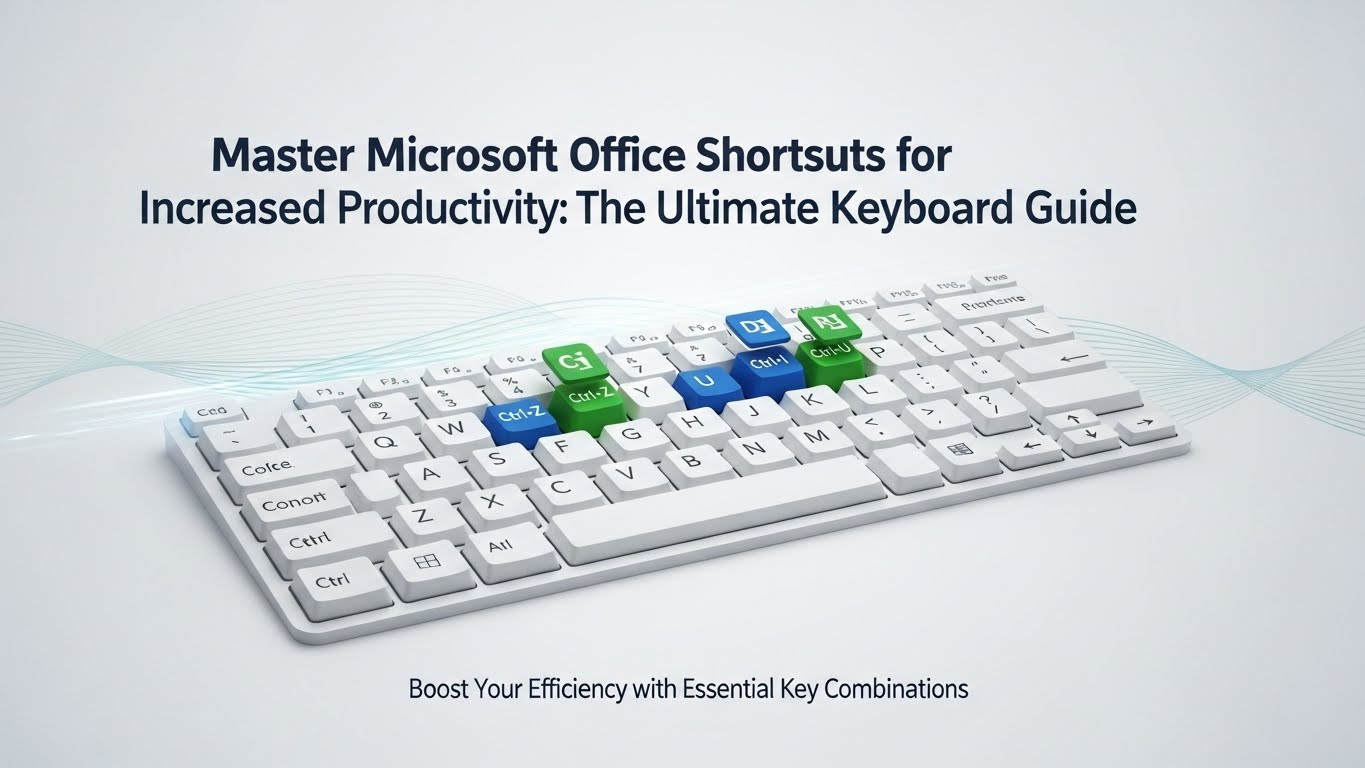
If you spend hours every week inside Word, Excel, PowerPoint, and Outlook, your biggest productivity boost isn’t a new app—it’s your keyboard. Microsoft Office shortcuts cut out repetitive clicks, speed up formatting, and help you stay in flow. Even learning a small set of high-impact keystrokes can save minutes per task, which stacks into hours over a month. Microsoft itself highlights shortcuts as a major efficiency and accessibility advantage across Office apps. Microsoft Support+2XDA Developers+2
This guide gives you a fresh, SEO-optimized rewrite of the topic: the most useful Microsoft Office keyboard shortcuts, grouped by universal commands and app-specific power moves. Use it as a practical cheat sheet you can build into muscle memory.
Why Keyboard Shortcuts Matter in Microsoft Office
Mouse-driven work adds friction. Every time you hunt a menu or click around the ribbon, you break concentration. Shortcuts remove that pause. They help you:
- finish formatting in seconds
- navigate long documents or spreadsheets faster
- edit with precision
- keep your hands in one place
- reduce fatigue during long sessions
In short, shortcuts turn Office into a faster, cleaner workflow tool instead of a click-heavy chore. XDA Developers+1
Universal Microsoft Office Shortcuts (Work in Most Apps)
Start here. These shortcuts work across Word, Excel, PowerPoint, and Outlook, so they deliver the biggest “speed per key” return. Microsoft Support+2IT Services and Support Center+2
Essential Editing
- Ctrl + C – Copy
- Ctrl + X – Cut
- Ctrl + V – Paste
- Ctrl + Z – Undo
- Ctrl + Y – Redo / Repeat
- Ctrl + A – Select all
- Ctrl + F – Find
- Ctrl + H – Replace
File and Window Control
- Ctrl + N – New file
- Ctrl + O – Open file
- Ctrl + S – Save
- F12 – Save As
- Ctrl + P – Print
- Ctrl + W – Close file/window
Text Formatting (Universal)
- Ctrl + B – Bold
- Ctrl + I – Italic
- Ctrl + U – Underline
- Ctrl + K – Insert hyperlink
- Ctrl + E – Center align
- Ctrl + L – Left align
- Ctrl + R – Right align
These alone cover most daily actions without touching the mouse.
Microsoft Word Shortcuts for Faster Writing and Formatting
Word is about speed + structure. These shortcuts help you draft, revise, and format like a pro. Technastic+1
Navigation and Selection
- Ctrl + Right / Left Arrow – Jump by word
- Ctrl + Up / Down Arrow – Jump by paragraph
- Ctrl + Home / End – Go to top/bottom of document
- Shift + Arrow Keys – Select text gradually
- Ctrl + Shift + Arrow Keys – Select by word/paragraph
Layout and Styling
- Ctrl + 1 / 2 / 5 – Single / Double / 1.5 line spacing
- Ctrl + Shift + > / < – Increase/decrease font size
- Ctrl + D – Font dialog box
- Ctrl + Shift + C / V – Copy/Paste formatting
- Ctrl + Alt + 1 / 2 / 3 – Heading 1/2/3 styles
Review and Productivity
- F7 – Spelling and grammar check
- Shift + F7 – Thesaurus
- Ctrl + Enter – Page break
- Alt + Shift + Up / Down – Move paragraph up/down
These are the shortcuts that make long documents feel light.
Excel Shortcuts for Data Entry, Analysis, and Power Work
Excel rewards keyboard users. Once you learn “movement + selection + actions,” you’ll fly through sheets. GeeksforGeeks+2lifecycle365.com+2
Movement and Selection
- Ctrl + Arrow Keys – Jump to edge of data region
- Ctrl + Shift + Arrow Keys – Select to edge
- Ctrl + Home – Go to A1
- Ctrl + End – Go to last used cell
- Shift + Space – Select entire row
- Ctrl + Space – Select entire column
Data Entry and Editing
- F2 – Edit active cell
- Alt + Enter – New line within a cell
- Ctrl + Enter – Fill selected range with same value
- Ctrl + D – Fill down
- Ctrl + R – Fill right
- Ctrl + ; – Insert today’s date
- Ctrl + Shift + ; – Insert current time
Formatting and Analysis
- Ctrl + 1 – Format Cells menu
- Ctrl + Shift + L – Toggle filters
- F4 – Repeat last action / lock cell reference ($A$1)
- Alt + = – AutoSum
- Ctrl + T – Create table
If you memorize only five Excel shortcuts, make them: Ctrl+Arrow, Ctrl+Shift+Arrow, F2, Ctrl+1, Ctrl+Shift+L.
PowerPoint Shortcuts to Build Slides Faster
PowerPoint work is mostly arranging objects and presenting smoothly. These shortcuts keep you in control. lifecycle365.com+1
Slide Creation and Editing
- Ctrl + M – New slide
- Ctrl + D – Duplicate selected object/slide
- Ctrl + Shift + C / V – Copy/Paste formatting
- Ctrl + G – Group objects
- Ctrl + Shift + G – Ungroup objects
- Alt + Shift + Arrow Keys – Nudge objects precisely
Presentation Mode
- F5 – Start slideshow from beginning
- Shift + F5 – Start from current slide
- Esc – End slideshow
- B / W – Black/white screen during slideshow
These are huge for both creation and delivery.
Outlook Shortcuts for Email and Calendar Control
Outlook gets chaotic without speed tools. Keyboard shortcuts help you triage email quickly and stay on top of meetings. GeeksforGeeks+1
Inbox Management
- Ctrl + R – Reply
- Ctrl + Shift + R – Reply all
- Ctrl + F – Forward
- Ctrl + Enter – Send
- Ctrl + Shift + I – Switch to Inbox
- Ctrl + Shift + O – Switch to Outbox
Calendar and Scheduling
- Ctrl + 2 – Go to Calendar
- Ctrl + 1 – Go to Mail
- Ctrl + Shift + A – New appointment
- Ctrl + Shift + Q – New meeting request
These shortcuts reduce the “email tax” that eats your day.
How to Learn Office Shortcuts Without Overwhelm
Trying to memorize 100 shortcuts at once won’t stick. Use a smarter ramp:
- Pick 5 universal shortcuts.
Use them until they’re automatic. - Add 3 app-specific shortcuts per week.
For example, Word headings, Excel filters, PowerPoint duplicate. - Print a tiny cheat sheet.
Keep it near your monitor for two weeks. - Force yourself to use them.
The first day feels slower. By day three, you’re faster. - Use ribbon hints when stuck.
Press Alt in any Office app to reveal KeyTips for ribbon commands. Microsoft Support+1
Shortcuts become muscle memory through repetition, not reading.
Bonus: High-Value “Hidden” Shortcuts Most People Miss
These are the quiet MVPs that save surprising time. Groovy Post+1
- Ctrl + Shift + N (Outlook/Windows) – New folder
- Ctrl + Backspace – Delete previous word
- Ctrl + Shift + 8 (Word) – Show/hide formatting marks
- Ctrl + Page Up / Page Down (Excel/PowerPoint) – Switch sheets/slides
- Shift + F10 – Open right-click context menu
Pick one or two of these to level up your workflow.
Final Thoughts: Small Shortcut Habits, Big Productivity Gains
You don’t need to become a keyboard wizard overnight. Start with universal Office shortcuts, then master the top commands for the apps you use most. Within a month, your work speed jumps, formatting becomes effortless, and your focus stays locked on the task—not the toolbar.