Skip to content
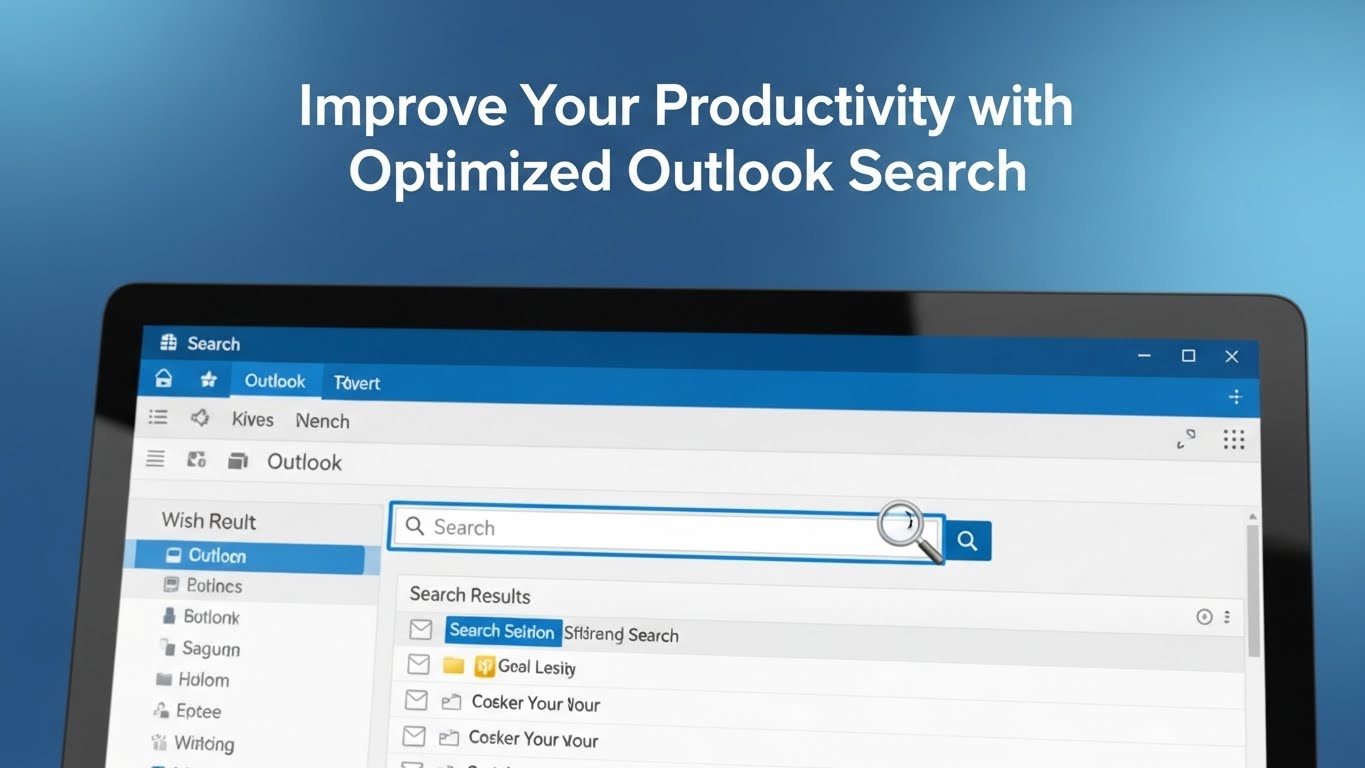
In a busy workday, your inbox can feel like a second job. Messages pile up, attachments hide in long threads, and calendar items get buried under weeks of updates. When you can’t find what you need quickly, tasks slow down, decisions get delayed, and your focus breaks. That’s why mastering Outlook search optimization is one of the simplest ways to boost daily productivity.
Microsoft Outlook already has strong search tools, but most users only scratch the surface. With a few practical tweaks—better indexing, smarter filters, saved searches, and power-user shortcuts—you can turn Outlook into a fast, reliable information engine. This guide walks you through exactly how to optimize Outlook Search for speed, accuracy, and repeatable workflows. ecokeys.co.uk
Understanding Outlook Search: The Basics vs. the Real Power
Outlook search works through a combination of keywords and metadata. The search bar at the top of Outlook lets you look through emails, contacts, tasks, and calendar events in seconds. You can search by sender name, subject words, dates, and even file types. ecokeys.co.uk
But the real productivity gains come from using advanced search tools—filters, Boolean operators, targeted folder searches, and saved criteria. Instead of scrolling through hundreds of results, you can narrow your search to the exact message you need. Think of it like the difference between Googling a vague term and using perfect search operators to land on the right page instantly. ecokeys.co.uk
Step 1: Make Sure Outlook Is Properly Indexed
Search speed depends on indexing. Indexing is like a library catalog: if Outlook doesn’t index your folders properly, it can’t find items quickly—or at all. Outlook relies on Windows Search indexing to deliver instant results. ecokeys.co.uk
How to confirm indexing
- Open Outlook and go to File → Options → Search.
- Click Indexing Options, then Modify.
- Make sure Microsoft Outlook is checked as an indexed location. ecokeys.co.uk
When to rebuild the index
If searches are slow, incomplete, or missing recent emails, rebuilding usually fixes it:
- Open Indexing Options → Advanced.
- Click Rebuild.
Rebuilding takes time, but it refreshes your search database and restores performance. ecokeys.co.uk
Step 2: Use Search Folders for “Always-On” Results
Search Folders are virtual folders that automatically show emails matching criteria you define. They don’t move mail; they just collect it in one live view. The result is less searching later because your searches become ongoing dashboards. ecokeys.co.uk
How to create a Search Folder
- Go to Outlook Mail.
- Open the Folder tab.
- Click New Search Folder.
- Choose a built-in option (Unread Mail, From Specific People, Categorized Mail), or pick Custom Search Folder for more control. ecokeys.co.uk
Best Search Folder ideas
- “Unread mail from my manager”
- “Invoices with attachments”
- “Emails flagged this week”
- “Client X conversations”
These folders cut repeat searches down to zero.
Step 3: Master Advanced Find for Precision Searches
When you need absolute control, Advanced Find is your best tool. It lets you define search criteria across multiple tabs—Messages, More Choices, and Advanced—so you can locate messages with surgical accuracy. ecokeys.co.uk
Open Advanced Find
- Press Ctrl + Shift + F, or
- Go to Home → Search → Search Tools → Advanced Find. ecokeys.co.uk
Why Advanced Find is a productivity win
You can search combinations like:
- From “Sarah”
- With “proposal” in subject
- Received between two dates
- Containing attachments
- Assigned to a specific category
You can also save these searches for repeated use, turning one-time effort into a reusable workflow. ecokeys.co.uk
Step 4: Use Boolean Operators to Filter Noise
Boolean operators let you combine or exclude terms the way professional researchers do. Outlook supports classic logic words: AND, OR, and NOT. ecokeys.co.uk
Examples that save time
- budget AND report → finds emails containing both words
- budget OR forecast → finds emails containing either term
- budget NOT draft → removes unwanted “draft” results
When inboxes are huge, Boolean searches stop you from drowning in irrelevant hits.
Step 5: Search by Date Like a Pro
Outlook supports natural-language and structured date searches. This is perfect when you remember when something happened but not the exact subject line. ecokeys.co.uk
Fast date keywords
Type phrases like:
- today
- yesterday
- last week
- this month
Specific date ranges
You can also use a date field:
- received:01/01/2022..01/31/2022
That example pulls everything received in January 2022. Date searches are especially useful for audits, client history checks, and deadline follow-ups. ecokeys.co.uk
Step 6: Create Custom Filters for Your Inbox Style
Filters turn Outlook into your personal search engine. With custom criteria, you can jump to the right slice of your inbox instantly. ecokeys.co.uk
How to build a custom filter
- Open Advanced Find (Ctrl + Shift + F).
- Use tabs like Messages, More Choices, and Advanced to define rules.
- Add conditions such as:
- From
- Subject
- Received date
- Attachment Contains
- Importance
- From
- Save the search so you can reuse it anytime. ecokeys.co.uk
Custom filters are perfect for repetitive work—support queues, approvals, legal mail tracking, or finance documentation.
Step 7: Organize with Categories and Tags
Search works best when your inbox has structure. Categories and tags add searchable signals to messages, making future searches faster and cleaner. ecokeys.co.uk
How to categorize emails
- Right-click any email.
- Select Categorize.
- Choose a color/category.
Search by category
Type:
- category:Red
or - category:”Client A”
This instantly pulls all matching messages even across different folders. ecokeys.co.uk
Step 8: Keep Search Performance Fast Over Time
Even the best search settings will slow down if your mailbox becomes a landfill. Regular maintenance keeps searches lightning-quick. ecokeys.co.uk
Clean up habits that pay off
- Archive old mail into organized folders.
- Delete clutter you no longer need.
- Use Outlook’s Clean Up tool to remove redundant messages in long conversations. ecokeys.co.uk
Keep Outlook updated
Outlook updates often include performance fixes and indexing improvements:
- Go to File → Office Account → Update Options → Update Now. ecokeys.co.uk
Optimize your PC
Search is also a system-level feature. Keep your computer healthy by:
- freeing up drive space
- running disk cleanup
- closing heavy background apps when Outlook feels slow ecokeys.co.uk
Step 9: Advanced Outlook Search Tips for Power Users
If you want real “expert mode,” these tricks help even more.
Automate searches with macros
If you repeat the same search daily, a VBA macro can run it instantly and return filtered results. Assign macros to buttons or shortcuts for one-click searching. ecokeys.co.uk
(Only do this if you’re comfortable with VBA.)
Add third-party search tools (optional)
Outlook add-ins like Lookeen or X1 Search provide ultra-fast indexing and cross-file searching for heavy inbox users. This can be useful in corporate environments with years of stored mail. ecokeys.co.uk
Learn the three best shortcuts
Keyboard control saves more time than any single feature:
- Ctrl + E → jump to Search bar instantly
- Alt + Q → open Search Tools
- Ctrl + Shift + F → open Advanced Find ecokeys.co.uk
Once these are muscle memory, you’ll search almost without thinking.
Final Thoughts: Make Outlook Search Your Daily Superpower
Optimized Outlook search is one of those productivity upgrades you feel immediately. When indexing is healthy, Search Folders are set up, Advanced Find is in your toolkit, and filters are tailored to your workflow, Outlook stops being a messy inbox and becomes a structured knowledge base. ecokeys.co.uk
The payoff is simple: less time hunting, more time doing. Start with indexing, build a few Search Folders, learn Boolean and date searches, then layer in categories and shortcuts. After a week, your inbox will feel smaller—even if the email volume stays the same.