Skip to content
Verifying a Microsoft product key is essential to ensure that your copy of Windows or Microsoft Office is genuine, properly licensed, and permanently activated. With counterfeit and recycled keys widely sold online, many users want to confirm whether their product key is valid before they rely on it long term.
This guide explains how to verify a Microsoft product key safely and correctly, using official methods supported by Microsoft. It covers Windows and Office products, common activation checks, warning signs of fake keys, and what to do if verification fails.
What Is a Microsoft Product Key?
A Microsoft product key is a 25-character alphanumeric code used to activate Microsoft software such as Windows or Office. It proves that your copy of the software is licensed and allows full access to updates and features.
Product Key vs Digital Licence
Modern versions of Windows and Office often use a digital licence instead of a visible product key.
- Product key: A 25-character code (XXXXX-XXXXX-XXXXX-XXXXX-XXXXX)
- Digital licence: Activation linked to your Microsoft account or device hardware
If your system shows “Windows is activated with a digital licence”, it means Microsoft has already verified your licence without requiring you to enter a key manually.
Types of Microsoft Product Keys
Understanding your key type helps determine whether it can be reused or transferred:
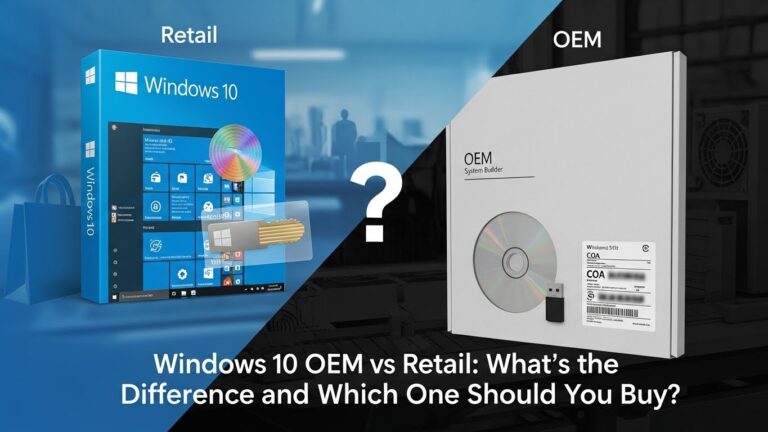
- Retail key: Purchased directly from Microsoft or authorised retailers; transferable
- OEM key: Pre-installed on a device; tied to one machine only
- Volume licence key: Intended for businesses or institutions
- Subscription activation: Used by Microsoft 365 accounts
Why Verifying a Microsoft Product Key Is Important
Verifying your product key protects you from:
- Future deactivation
- Blocked or blacklisted keys
- Loss of updates and security patches
- Software compliance issues
- Scams and counterfeit licences
A key may appear to activate successfully but still be invalid if it was obtained improperly or reused beyond its licence terms.
How to Verify a Microsoft Product Key (All Methods)
There is no public webpage where you can enter a key and check it instantly. However, Microsoft provides reliable verification methods through activation status and system tools.
Method 1: Check Activation Status in Windows Settings
This is the simplest and safest method.
Steps (Windows 10 & 11):
- Open Settings
- Go to System → Activation
- Check the activation message
What the Results Mean:
- “Windows is activated with a digital licence” → Licence is valid
- “Windows is activated using your organisation’s activation service” → Volume licence
- Activation error message → Key may be invalid or mismatched
If Windows confirms activation without warnings, your key has been accepted by Microsoft’s servers.
Method 2: Verify Using Command Prompt (Advanced Check)
Windows includes built-in licence verification commands.
Steps:
- Press Windows + X
- Select Command Prompt (Admin) or Windows Terminal (Admin)
- Enter one of the following commands:
Common Commands
- slmgr /xpr → Shows whether Windows is permanently activated
- slmgr /dli → Displays licence type and partial key
- slmgr /dlv → Shows detailed activation data
How to Interpret Results
- Permanently activated → Valid licence
- Expiration date shown → Temporary or volume licence
- Notification or error status → Possible invalid or blocked key
This method is widely referenced by Microsoft support and is highly reliable.
Method 3: Verify Through Your Microsoft Account
For digital licences and Office products, your Microsoft account is a key verification point.
Steps:
- Sign in to your Microsoft account
- Open Services & subscriptions
- Check whether Windows or Office appears as activated
If your software is listed and active, the licence is genuine and linked to your account.
Method 4: Verify Microsoft Office Product Keys
Office activation works slightly differently from Windows.
Office 2019 / 2021
- Activation is usually linked to a Microsoft account
- Only the last 5 characters of the key are visible
- Activation confirmation indicates a valid key
Microsoft 365
- No product key verification required
- Subscription status confirms legitimacy
If Office activates successfully and shows as licensed in your account, the key has been verified by Microsoft.
Method 5: Identify the Key Type (Retail, OEM, Volume)
You can identify the type of key used (not its authenticity alone).
- OEM keys are tied to hardware
- Retail keys can be transferred
- Volume keys are often restricted
This helps explain why some keys activate but later fail after hardware changes.
How to Tell If a Microsoft Product Key Is Fake
Even if activation initially succeeds, some keys are later blocked.
Common Warning Signs
- Extremely low prices
- “Lifetime activation” claims
- Activation works temporarily, then deactivates
- Key fails after Windows updates
- No receipt or proof of purchase
What Happens If a Key Is Not Genuine
- Windows may display “Activate Windows”
- Office may enter reduced-function mode
- Updates and security patches can be limited
- Microsoft may permanently block the licence
What to Do If Your Microsoft Product Key Is Invalid
Check Common Causes
- Wrong Windows edition installed
- Key already used on another device
- Hardware changes invalidated an OEM licence
- Typing errors
Re-activate After Hardware Change
If you have a digital licence:
- Sign in to your Microsoft account
- Use Activation Troubleshooter
- Select “I changed hardware recently”
When to Contact Microsoft Support
Contact Microsoft if:
- You bought a key from an authorised seller
- You have proof of purchase
- Activation fails unexpectedly
Microsoft may replace the key or re-activate your licence if it is legitimate.
Frequently Asked Questions
Can Microsoft check if a product key is genuine?
Yes. Activation occurs through Microsoft servers, which automatically verify legitimacy.
Is there an official Microsoft product key checker?
No public key-lookup tool exists. Verification happens during activation.
Can a key be valid and later blocked?
Yes. Reused, misused, or resold keys may be deactivated later.
Can I verify a key before installing Windows?
Not officially. Verification happens only during or after activation.
Does activation guarantee the key is genuine?
Activation confirms acceptance at the time, but long-term legitimacy depends on licence source.
Best Practices for Buying Microsoft Product Keys Safely (UK)
- Buy from Microsoft or authorised UK retailers
- Avoid suspiciously cheap keys
- Keep invoices and receipts
- Prefer Microsoft account-based activation
- Avoid “grey market” sellers
Final Verdict: The Safest Way to Verify a Microsoft Product Key
The most reliable way to verify a Microsoft product key is to confirm successful activation directly within Windows or Office using official tools such as Windows Activation settings, Command Prompt checks, and Microsoft account verification.
If Microsoft confirms activation without warnings, your licence is valid. For long-term security, always purchase keys from authorised sources and link licences to your Microsoft account.