Skip to content
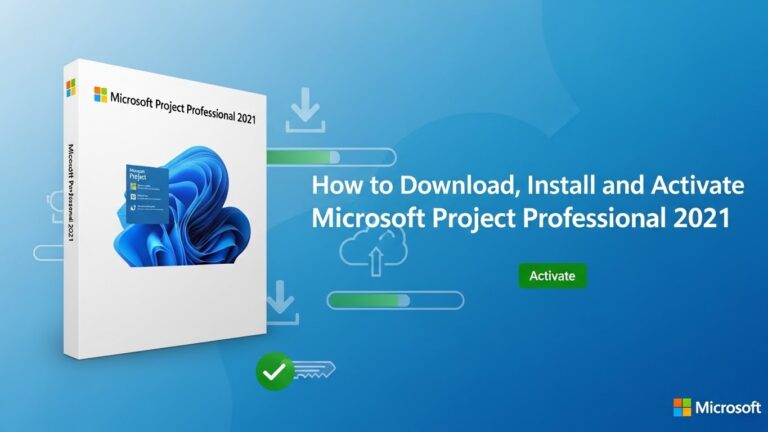
Installing Office 2021 doesn’t have to be complicated. This guide will walk you through everything you need, from downloading and installing to activating Office 2021 on both Windows and Mac. We’ll also cover offline installs, troubleshooting tips, and common pitfalls so you can set up Office without frustration.
What You Need Before Installing Office 2021
Before starting, make sure you have everything ready.
System Requirements
- Windows: Windows 10 or 11
- Mac: macOS 10.14 (Mojave) or later
- Hardware: 4 GB RAM, 4 GB free disk space, 1280×768 screen
Microsoft Account and Product Key
- You need a Microsoft account linked to your Office 2021 licence.
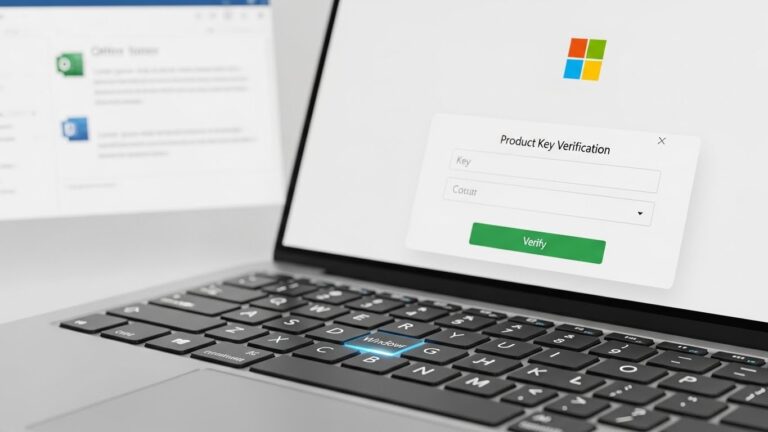
- Keep your 25-character product key handy if prompted during installation.
Remove Old Office Versions
- Uninstall previous versions to prevent conflicts.
- Use Settings > Apps > Microsoft Office > Uninstall on Windows.
Office 2021 vs Microsoft 365
- Office 2021 is a one-time purchase, not a subscription.
- Avoid accidentally downloading Microsoft 365, which may appear in your account.
How to Download Office 2021
Redeem Your Product Key
- Go to https://setup.office.com
- Sign in with your Microsoft account.
- Enter your product key and redeem it.
Link to Microsoft Account
- After redeeming, Office 2021 will be linked to your account for future installs.
Access Your Downloads Page
- Click Install Office to download the setup file suitable for your device.
How to Install Office 2021 on Windows
Step 1 — Sign In
- Log in to your Microsoft account on your PC.
Step 2 — Download Installer
- Click Install Office → choose the 64-bit (recommended) or 32-bit version.
Step 3 — Run Setup File
- Open the downloaded .exe file and follow the prompts.
- Click Yes if Windows asks for permission.
Step 4 — Complete Installation
- Wait until installation finishes; this usually takes 10–20 minutes.
- Launch any Office app (Word, Excel) to ensure it works.
Choosing 64-bit or 32-bit
- 64-bit is ideal for large files and modern systems.
- 32-bit works better for older add-ins or compatibility issues.
How to Install Office 2021 on Mac
Download the Installer
- Download the .pkg file from your Microsoft account.
Run Installation Wizard
- Double-click the .pkg file and follow the instructions.
Allow Required Permissions
- macOS may request permission for certain features—click Allow.
Launch and Activate
- Open any Office app and sign in with your Microsoft account to activate.
How to Activate Office 2021
Sign In to Activate
- Most users only need to sign in with their Microsoft account.
Enter Product Key
- If prompted, enter your 25-character product key.
Verify Activation
- Open File > Account in any Office app to check activation status.
Offline Installation (Office 2021 Offline Installer)
When to Use Offline Installer
- Use offline installer if you have slow or limited internet.
Download Offline Installer
- Log in to Microsoft account → select Other Options → choose Offline Installer.
Running Offline Installer
- Windows: Run the downloaded .exe
- Mac: Run the .pkg file as usual
This ensures Office installs without an active internet connection.
Advanced Method: Install Office 2021 Using the Office Deployment Tool (ODT)
Who Needs This
- Businesses or users with volume licenses.
Download ODT
- Get the Office Deployment Tool from Microsoft’s official website.
Example Configuration XML
<Configuration>
<Add OfficeClientEdition=”64″ Channel=”PerpetualVL2021″>
<Product ID=”ProPlus2021Volume”>
<Language ID=”en-us” />
</Product>
</Add>
</Configuration>
Run Installation
- Open Command Prompt → navigate to ODT folder → run:
setup.exe /configure configuration.xml
Managing Multiple Devices
- ODT allows installing Office 2021 on multiple PCs with customised settings.
Reinstalling Office 2021 on a New PC
Deactivate Old Installation
- Remove Office from old PC via Microsoft account online.
Device Limit
- Office 2021 allows installation on one PC per licence (unless volume licence).
Clean Reinstall
- Follow the same download and install steps to reinstall on a new device.
Common Problems & Troubleshooting Tips
Office Installs Microsoft 365 Instead of 2021
- Ensure you select Perpetual Office 2021, not 365, during download.
Licence Not Found
- Verify your product key and account are linked.
Installation Stuck
- Restart PC, check internet, and run installer as admin.
Activation Fails
- Sign out and sign back into Microsoft account.
- Check your system date/time.
Lost Product Key
- Visit Microsoft account > Services & subscriptions to recover key.
FAQs About Installing Office 2021
Q: Can I install Office 2021 without a Microsoft account?
A: Only if you have a volume licence using ODT; standard users must sign in.
Q: How many devices can I install Office 2021 on?
A: One PC per licence for retail versions; ODT allows multiple for volume licences.
Q: Does Office 2021 include Word, Excel, PowerPoint, Outlook?
A: Yes, depending on the edition you purchased.
Q: How long does Office 2021 take to install?
A: Usually 10–20 minutes depending on your PC or Mac.
Q: Can I download Office 2021 again if I lose my PC?
A: Yes, log into your Microsoft account to reinstall anytime.
Conclusion
Installing Office 2021 is straightforward when you follow the right steps. Make sure to redeem your product key, choose the correct version, and follow the installation steps carefully. Whether you’re using Windows or Mac, this guide ensures a smooth setup without mistakes.
✅ Pro Tip: Keep your Microsoft account credentials safe and linked to Office 2021 — it makes future reinstalls or upgrades much easier.