Skip to content
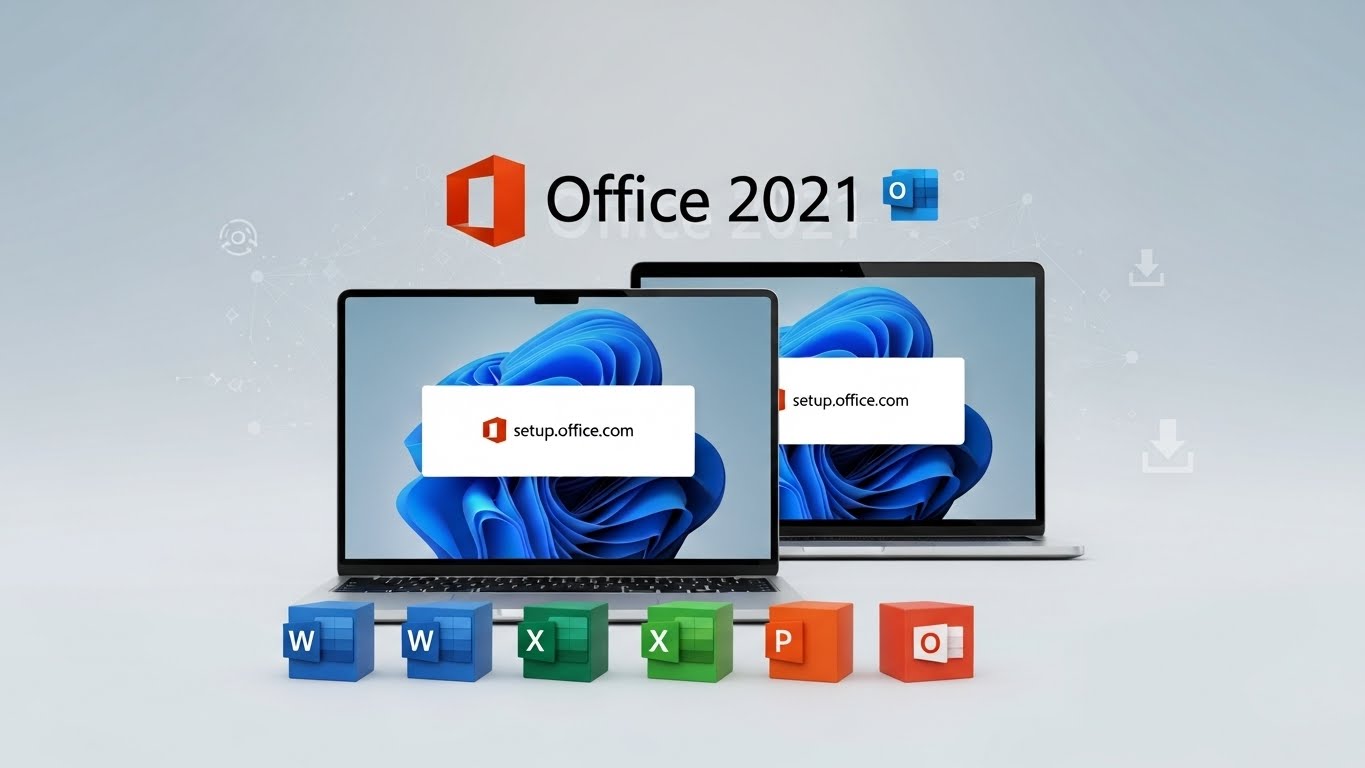
Installing Microsoft Office 2021 through Setup.office.com is the official way to redeem a product key, link your license to your Microsoft account, and download the correct installer. If you recently purchased Office 2021 (Home & Student, Home & Business, or Professional), this method ensures your copy is genuine, activated properly, and easy to reinstall later.
In this guide, you’ll learn exactly how to install Office 2021 using Setup.office.com, what you need before you start, and how to fix common problems like “key already used” or installation errors.
What You Need Before Installing Office 2021
Before you begin, make sure you have these three things ready:
- A valid Office 2021 product key
It’s usually 25 characters, in this format: XXXXX-XXXXX-XXXXX-XXXXX-XXXXX. You’ll find it on your purchase card, in an email receipt, or inside your account with the seller. Microsoft directs users to redeem Office perpetual keys on Setup.office.com. Microsoft Support+1 - A Microsoft account
When you redeem your key, Microsoft attaches the license to your account. This is important because it lets you reinstall Office later without re-entering the key. setup.office.com+1 - A stable internet connection and enough storage
The installer downloads several gigabytes. If your connection is unreliable, you may face failed setup loops. Microsoft recommends downloading and installing while connected. Microsoft Support
Step 1: Redeem Your Product Key on Setup.office.com
- Open your browser and go to Setup.office.com.
- Sign in with your Microsoft account.
- If you don’t have one, create it on the same screen.
- If you don’t have one, create it on the same screen.
- Enter your Office 2021 product key exactly as shown.
- Select your country/region and preferred language.
- Click Next / Redeem.
Once redeemed, your license becomes permanently linked to your Microsoft account. You won’t need to type that key again on the same account. Microsoft Support+1
Step 2: Download Office 2021 From Your Account
After redemption, Microsoft sends you to your Office dashboard. You can also reach it later by visiting your Microsoft account services page.
- Find Office 2021 under your services or subscriptions.
- Click Install Office or Download.
- Choose:
- Windows (64-bit) or Mac installer, depending on your device.
- Windows (64-bit) or Mac installer, depending on your device.
- Save the setup file to your computer.
Microsoft’s official install page confirms this flow: redeem → sign in → download installer. Microsoft Support+1
Step 3: Install Office 2021 on Windows
- Locate the downloaded file (usually Setup.exe).
- Double-click it to start the installation.
- If Windows asks, select Yes to allow changes.
- Office begins installing automatically. You’ll see a progress screen.
- When finished, click Close.
Office installs all core apps in one go. You don’t need to pick Word vs Excel separately. Microsoft notes that installation may take several minutes depending on speed and system performance. Microsoft Support
Activate Office on Windows
- Open Word (or any Office app).
- Sign in with the same Microsoft account you used to redeem the key.
- Office activates automatically once it detects the license. Microsoft Support+1
Step 4: Install Office 2021 on Mac
- Open the downloaded Office installer package (.pkg).
- Click Continue through the prompts.
- Accept the license agreement.
- Choose where to install (default is fine).
- Enter your Mac password to confirm.
- Wait for installation to complete.
Activate Office on Mac
- Open Word or Excel.
- Sign in with your redeemed Microsoft account.
- Activation completes after sign-in. Microsoft Support
Step 5: Confirm Everything Works
Open a couple of apps (Word, Excel, PowerPoint) and check:
- no “Activate Office” banner remains
- you can create and save a file
- updates run normally
If you see “Product Activated” under Account in any Office app, you’re good.
Common Problems and How to Fix Them
Problem 1: “This Product Key Has Already Been Used”
This message appears when:
- the key was redeemed on another account
- the seller accidentally reused a key
- you typed it incorrectly
Fixes:
- Recheck characters like B/8, G/6, O/0.
- Sign in with the Microsoft account you might have used previously.
- If the key truly belongs to you but is tied elsewhere, Microsoft Support is your next step. Microsoft Support+1
Problem 2: Setup.office.com Won’t Load or Says “Service Unavailable”
Try:
- clearing browser cache/cookies
- switching browsers (Edge/Chrome/Firefox)
- disabling VPN or proxy temporarily
- using a different network
Microsoft community threads show temporary service issues can happen, but switching environment usually resolves it. Microsoft Learn+1
Problem 3: Office Installer Stops or Fails
The most common causes:
- old Office versions interfering
- antivirus blocking setup
- unstable connection
Fixes:
- Uninstall older Office first if you’re replacing 2016/2019/365.
- Restart your PC.
- Run the official Office installation troubleshooter if the installer keeps failing. Microsoft Support
Problem 4: Office Installs but Won’t Activate
Make sure:
- you signed in with the same account used on Setup.office.com
- the PC is online
- date/time on your OS is correct
If activation still fails, Microsoft’s activation and reinstall guidance covers account-based troubleshooting. Microsoft Support+1
Pro Tips for a Smooth Office 2021 Installation
- Redeem once, reinstall anytime. Since the license attaches to your account, future installs are easier: just sign in and download again. setup.office.com+1
- Keep your Microsoft account secure. Your Office license is effectively stored there.
- Install on the right device. Office 2021 perpetual licenses are typically for one PC or Mac unless your specific purchase says otherwise. Microsoft Support
- Update after install. Open any app → File → Account → Update Options to grab the latest security patches