Skip to content
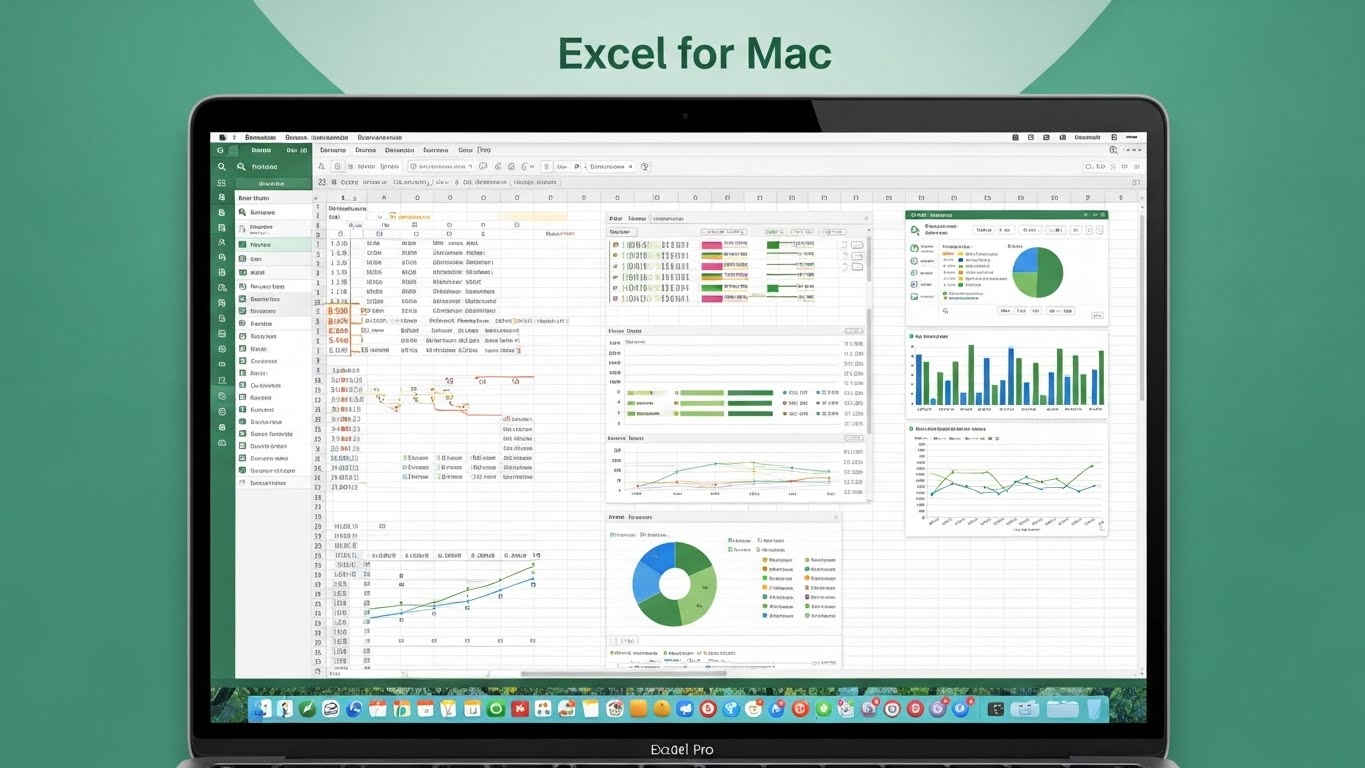
Microsoft Excel for Mac has grown into a serious, full-featured data powerhouse. If you’re working on macOS and need a reliable way to organize information, analyze trends, and present insights clearly, Excel remains the gold standard. It delivers the core spreadsheet strengths people love—formulas, charts, PivotTables, automation—while steadily closing the gap with its Windows counterpart through ongoing updates. SoftwareKeep+1
This article walks you through why Excel for Mac is such a valuable tool for data management and analysis, the most useful features to master, and practical ways to get more out of it—whether you’re a student, analyst, entrepreneur, or team lead.
Why Excel for Mac Still Dominates Data Work on macOS
Mac users often have many spreadsheet options, but Excel wins because it combines flexibility with depth. You can run a quick budget, build a complex forecasting model, or clean messy datasets from multiple sources—all in one place. Excel for Mac supports modern collaboration, integrates with Microsoft 365, and handles professional workloads without forcing you into a specialized BI platform. Excel Dashboards
In short: it’s the one tool that scales from simple lists to serious analytics.
Core Strengths of Excel for Mac for Data Management
Data management is about keeping information accurate, structured, and easy to retrieve. Excel makes that painless through several key capabilities.
Structured Tables for Clean, Reliable Data
Excel Tables aren’t just pretty formatting. When you convert a range into a table, you unlock:
- automatic column headers
- consistent formulas down rows
- built-in sorting and filtering
- expansion that “just works” when new data arrives
This is the foundation for good analysis because tables reduce errors and keep datasets tidy.
Smart Sorting and Filtering
With a few clicks, you can:
- sort by multiple fields
- filter by values, text conditions, or color
- create quick “views” of only what matters
For day-to-day management—inventory lists, contact databases, KPIs—filters save hours.
Data Validation to Prevent Mistakes
Bad data ruins good analysis. Excel’s validation rules help you stop errors at the door, like:
- dropdown lists for standardized entries
- numeric limits (e.g., 0–100)
- date ranges
- custom validation messages
Even a tiny validation setup can dramatically improve dataset quality.
Excel for Mac Data Analysis Features You Should Use
Once your data is organized, Excel gives you multiple ways to analyze it quickly and deeply.
PivotTables: Your Fastest Insight Engine
PivotTables are one of Excel’s most powerful analysis tools. On Mac, you can summarize thousands of rows into meaningful reports in minutes: totals, averages, counts, rankings, and comparisons by category. Excel Dashboards
Typical PivotTable use cases include:
- sales by region and month
- expenses by department
- survey results by demographic
- project time tracking summaries
If you do any recurring reporting, PivotTables are non-negotiable.
Analysis ToolPak for Statistical Work
Excel for Mac includes the Analysis ToolPak, a built-in add-in that unlocks statistical tools such as regression, descriptive statistics, ANOVA, and more. It’s installed but often not enabled by default. Bricks+2scilift.blog+2
Enabling it gives you a Data Analysis button right in the Data tab, letting you run advanced stats without writing custom formulas. Bricks
Power Query (Get & Transform) for Data Cleaning
Power Query has become a major strength for Excel on Mac. It lets you import data from multiple sources, clean it automatically, and refresh it later without repeating steps. SoftwareKeep+1
With Power Query you can:
- remove duplicates
- split or merge columns
- standardize messy text
- pivot/unpivot data
- combine multiple files into one dataset
This is huge for anyone who regularly works with raw exports from apps, CRMs, or web tools.
Built-In Functions for Everyday Analytics
Excel’s formula library is one of its biggest advantages. Mac users get the same essential functions as Windows users for calculations, logic, and data modeling, including modern lookup tools and dynamic array behavior in recent versions. Excel Dashboards
Combine functions like lookups, conditional logic, text tools, and date math, and you can build robust analysis without needing another platform.
Data Visualization and Reporting on Mac
Analysis is only half the job—communicating results is the other half. Excel for Mac makes reporting visual and readable.
Charts That Tell the Story
Excel offers:
- line charts for trends
- bar/column charts for comparisons
- pie/donut charts for composition
- scatter plots for relationships
The “Recommended Charts” flow helps you pick chart types quickly, even though some Windows-only shortcuts like Quick Analysis aren’t present on Mac. Bricks
Conditional Formatting for At-a-Glance Meaning
Conditional formatting lets your spreadsheet highlight what matters:
- heatmaps to show intensity
- color scales for ranking
- icons for status
- alerts for thresholds
This turns large sheets into “visual dashboards” without extra tools.
Sparklines for Micro-Trends
Need tiny trendlines inside cells? Sparklines are great for showing performance patterns in dense tables—perfect for financial tracking or progress reporting.
Collaboration and Microsoft 365 Integration
Excel for Mac is built for modern teamwork. With Microsoft 365 you can:
- co-author in real time
- add comments and @mentions
- auto-save to OneDrive or SharePoint
- share with granular permissions
This reduces version chaos and keeps analysis aligned across teams. Excel Dashboards
Practical Ways to Use Excel for Mac in Real Life
Excel shines because it adapts to nearly any scenario.
Business and Operations
- sales dashboards
- stock/inventory tracking
- cash-flow forecasts
- performance KPIs
Education and Research
- data collection and cleaning
- statistical summaries
- assignment tracking
- lab result analysis
Personal Productivity
- budgeting
- fitness tracking
- travel planning
- habit logs
Once you understand the core features, Excel becomes a flexible decision-tool for almost anything measurable.
Tips to Get More Out of Excel for Mac
Here are habits that make a real difference:
- Start with a clean table, always. Better structure = better analysis.
- Use PivotTables early. Don’t manually summarize what PivotTables can do instantly.
- Automate cleaning with Power Query. Refresh beats re-doing. SoftwareKeep+1
- Enable Analysis ToolPak if you do stats. It’s hidden power. Bricks+1
- Save reusable templates. A good template turns weekly work into a 5-minute task.
Excel for Mac vs. Windows: What to Know
Excel for Mac is highly capable, but there are still a few platform differences. Some Windows-exclusive conveniences (like the Quick Analysis floating tool) aren’t available, though Mac alternatives exist through the ribbon and built-in menus. Bricks
The bigger story, though, is that Microsoft has been steadily improving feature parity—especially around Power Query and data tools—making Excel for Mac more “enterprise-ready” than ever. SoftwareKeep
Conclusion: Excel for Mac Is a Peak Data Tool
If you want a single application that can organize data, clean it, analyze it, and present it clearly, Excel for Mac is still the best all-around choice on macOS. From Tables and PivotTables to Power Query and the Analysis ToolPak, you have everything needed to turn raw information into confident decisions.