Skip to content
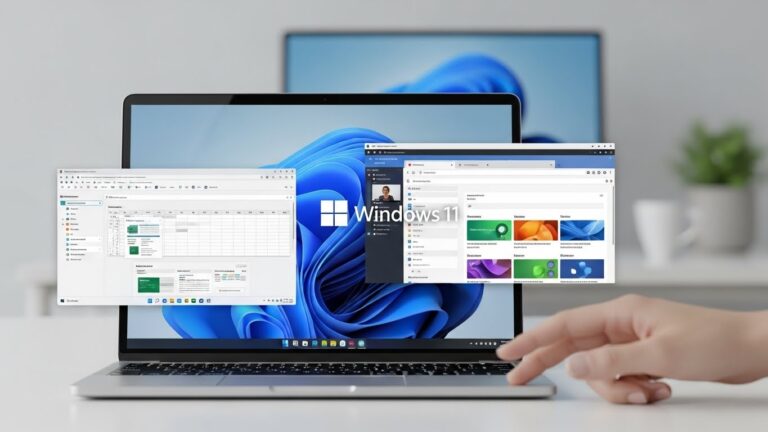
Windows 11 is already a strong gaming platform, but “good out of the box” isn’t the same as “fully optimized.” A few smart system tweaks can unlock smoother frame times, faster load speeds, lower input latency, and cleaner visuals—without spending a cent on new hardware. The trick is knowing which settings help your setup and which ones are just noise.
This guide walks you through the best Windows 11 gaming settings in 2025, from built-in Game Mode and DirectStorage to graphics, power, background processes, and network tuning. Follow these steps in order, and you’ll turn your PC into a focused gaming machine. Windows Central+2ComputerCity+2
Start With the Built-In Windows 11 Gaming Features
Enable Game Mode
Game Mode tells Windows to prioritize your game over background tasks. It reduces interruptions and helps stabilize performance. On modern Windows 11 builds, Game Mode is refined and generally worth keeping on. Windows Central+2egamer.com+2
How to turn it on:
- Settings → Gaming → Game Mode
- Toggle On
If you notice a specific game stuttering more with it enabled (rare), you can toggle it off and test—but for most users it improves consistency. Windows Central+1
Turn on Hardware-Accelerated GPU Scheduling (HAGS)
HAGS lets your GPU handle more of its own scheduling, which can reduce latency and sometimes improve FPS—especially on RTX 20/30/40-series, AMD RX 6000/7000, and Intel Arc GPUs. ComputerCity+1
Enable it here:
- Settings → System → Display → Graphics
- Default graphics settings
- Toggle Hardware-accelerated GPU scheduling on
- Restart your PC
Use DirectStorage (if you have NVMe)
DirectStorage cuts load times by letting supported games pull assets straight from NVMe SSD to GPU. You don’t toggle it manually; Windows uses it automatically when your hardware and game support it. Still, the “setting” here is using an NVMe SSD and keeping space free. Windows Central+2Windows Forum+2
Tip: keep at least 15–20% free space on the drive where games are installed to avoid slowdowns. Windows Central+1
Enable Auto HDR (for better visuals)
If you have an HDR-capable monitor/TV, Auto HDR can upgrade lighting and color in DirectX 11/12 games that don’t natively support HDR. It can make highlights pop and scenes feel more alive. All Things How+2GeeksforGeeks+2
Turn it on:
- Settings → System → Display → HDR
- Toggle Auto HDR on
You can adjust intensity per game using Xbox Game Bar:
- Press Win + G → Settings → Gaming features → Adjust HDR intensity. All Things How+1
Optimize Graphics Settings for Maximum Performance
Assign games to your dedicated GPU
Windows sometimes uses the wrong GPU on laptops or dual-GPU systems. Force your game to use the high-performance GPU. Windows Report+1
Steps:
- Settings → System → Display → Graphics
- Select/add your game
- Options → High performance → Save
Enable Variable Refresh Rate (VRR) if your monitor supports it
VRR (like G-Sync/FreeSync) reduces tearing and stutter by syncing FPS to your display refresh. Windows Central+1
Enable:
- Settings → System → Display → Graphics
- Toggle Variable refresh rate on
(Also enable G-Sync/FreeSync in your GPU control panel.)
Reduce Background Load and Free System Resources
Disable unnecessary startup apps
Startup clutter steals RAM and CPU cycles.
How:
- Press Ctrl + Shift + Esc → Task Manager
- Go to Startup apps
- Disable anything you don’t need for gaming (Discord auto-launch, Spotify, etc.). Windows Central+1
Stop background apps you don’t use
Windows 11 can let apps run in the background even when closed. Turn off what you don’t need.
- Settings → Apps → Installed apps
- Click an app → Advanced options
- Set Background apps permissions → Never for non-essential apps. Windows Central+1
Trim visual effects (lightweight FPS boost)
Disabling extra animations can reduce overhead on mid-range systems.
- Win + R → sysdm.cpl
- Advanced → Performance → Settings
- Choose Adjust for best performance
(or manually disable animations and shadows). Windows Central+1
Set the Right Power and Performance Modes
Use “Best Performance” power mode
On desktops this keeps clocks stable. On laptops, it prevents aggressive throttling mid-match. Windows Central+2ComputerCity+2
- Settings → System → Power & battery
- Power mode → Best performance
Laptop tip: if your thermals are weak, try “Balanced” to avoid overheating drops.
Update the Stuff That Actually Matters
Keep GPU drivers current
Driver updates often include game-specific optimizations and bug fixes.
- NVIDIA: GeForce Experience or official driver page
- AMD: Adrenalin Software
- Intel Arc: Intel Driver & Support Assistant ComputerCity+1
Update Windows (but schedule it)
Windows updates can improve gaming performance and compatibility, but don’t let them restart you mid-session.
- Settings → Windows Update
- Install updates, then set Active hours so Windows won’t reboot during play. Windows Central
Network Tweaks for Smoother Multiplayer
Prefer Ethernet over Wi-Fi
Wired connections have lower jitter and packet loss. If you can, plug in. The Gamers Mall+1
Turn off downloads while gaming
Steam/Epic/Xbox downloads can spike ping and cause stutter.
- Pause downloads before competitive play
- In Steam, set a download limit or schedule downloads outside playtime. Analytics Insight
Disable VPNs unless you need them
VPNs usually add latency. Only use one if it genuinely improves routing for your region. The Gamers Mall
Advanced Options (Use With Care)
Memory Integrity / VBS (security vs performance)
Some systems see a small FPS hit from Memory Integrity / virtualization-based security. If you’re chasing every frame in esports titles, you can test disabling it, but understand you’re trading security for speed. Windows Central+1
Test method (not mandatory):
- Windows Security → Device security → Core isolation
- Toggle Memory integrity off
- Restart and compare performance
If you don’t notice gains, turn it back on.
Quick “Best Settings” Checklist
For most gamers, these are the highest-impact changes:
- Game Mode On Windows Central+1
- HAGS On (modern GPU) ComputerCity+1
- Auto HDR On (HDR display) All Things How+1
- Dedicated GPU assigned per game Windows Report
- VRR / G-Sync / FreeSync enabled if supported Windows Central+1
- Startup/background apps trimmed Windows Central+1
- Power mode set to Best performance Windows Central+1
- GPU drivers updated regularly ComputerCity+1
- Games installed on NVMe with free space for DirectStorage gains Windows Forum+1
- Ethernet for competitive multiplayer Analytics Insight
Final Thoughts
Windows 11 has real gaming muscle—Game Mode, DirectStorage, HAGS, Auto HDR, VRR support—but you only feel the benefits when you enable the right settings and remove the noise. Start with the built-in gaming features, lock your games to the correct GPU, cut background clutter, and balance power/performance for your hardware. Your FPS won’t just rise; more importantly, your gameplay will feel smoother and more responsive.